
Lumide integrates autonomous coding agents via the Agent Client Protocol (ACP) alongside inline ghost text completions.
Agent Chat (ACP Host)#
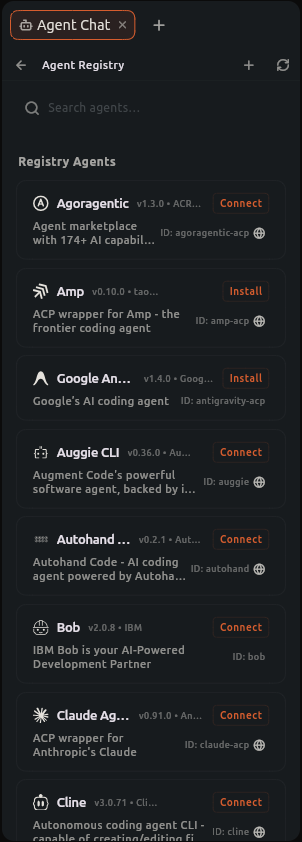
Lumide acts as a native ACP host. You can run autonomous coding agents (Claude Code, Gemini CLI, Goose, Cline, or custom agent processes) directly inside the IDE workspace.
Opening Agent Chat#
- Click the Agent Chat button in the TopBar or status bar.
-
Or click the
+(Add Pane) icon on any dock group header and choose Agent Chat. Its submenu lists your recent chats with connected agents, to reopen one in a new pane, and a new chat with each agent you used recently. -
You can type before picking an agent: press
Enterand the message waits above the box, where you can edit or remove it, while you pick an agent. It goes as soon as the agent connects. - Like any universal tab, Agent Chat can dock into the Left, Center, Right, or Bottom regions, or split side-by-side with your code.
Context & Mentions#
- Drag and Drop: Drag editor tabs or file tree items directly into the prompt box to attach them as context.
-
@Mentions: Type@in the prompt to search and pin workspace files or code symbols. -
Pinned Context: Context pills appear above the prompt box. Click
xon any pill to remove it.
Tool Approvals & Diff Review#
When an agent proposes actions, Lumide renders interactive approval cards:
- Shell Commands: Inspect the exact command line and working directory before allowing execution.
- File Edits: Proposed file modifications open in an interactive side-by-side diff viewer. Review line additions and deletions, then click Approve or Reject.
- Undo / Revert: Lumide maintains snapshot checkpoints for agent edits. You can undo or revert an entire batch of modifications in one click.
Agent Chat with Several Folders#
In a workspace of several folders, the agent works in the first folder and knows every other one:
- The folders: the first message of a chat lists each folder by its name, as the Files tree shows it, and full path. When a folder joins or leaves, the next message says so. The first message after you reopen a chat tells the agent the folders and rules as they are now.
-
@mentions list and search files in every folder, shown after the folder's name, such asapi/lib/server.dart. Mentions of files outside the first folder carry their full path, so folders of the same name never mix; so do dropped files and agent comments. -
AGENTS.md: the rules of each folder'sAGENTS.mdapply, labelled by folder. An edited or deletedAGENTS.mdreaches the agent with your next message. -
Paths: a path the agent gives relative to its folder that starts with another folder's name, such as
api/lib/server.dart, opens in that folder, unless the first folder hasapiitself. - Git: staging and diffs of a file run in that file's repository; other Git questions go to the repository Git commands act on.
- Sandbox: files in any folder count as inside the workspace; restricted patterns match relative to each folder.
-
Sharing: a guest's message to a shared chat names only the folders shared with that guest, says for that message alone which folders they see, and carries only those folders'
AGENTS.md. While the agent answers a guest, Lumide refuses its file, terminal and permission requests outside those folders, and commands that name a path outside them; it asks you before anything else the agent wants to run or change. Guests read anything about other folders as hidden. See Sharing a Workspace.
Agent Skills and MCP servers come from the first folder.
Session Management#
-
Concurrent Sessions: Open multiple independent agent sessions (
Agent Chat,Agent Chat (2)). - Session History: Switch between active and previous sessions, rename session titles, or search past messages.
- Export Thread: Export any conversation thread, thoughts, and diff logs directly to Markdown.
- Copy a Message: Hover a message and click Copy for its Markdown, or Copy as HTML for its HTML source, tables included.
- Token Metrics: The session footer tracks input/output tokens, cache utilization, and estimated session cost.
Agent Comments#
Leave notes on your code, then send them all to the agent in one message, like review comments on a pull request.
-
Put the cursor on a line, or select lines, and press
Ctrl + Enter(or right-click → Add Agent Comment). -
Type what you want changed. Press
Enterto save,Shift + Enterfor a new line. - Add more comments anywhere in the project.
-
Press Send (
Cmd + Enter/Ctrl + Enterwhile typing), the send icon on a saved comment, orCtrl + Shift + Enteranywhere.
Lumide sends each comment's file, lines and code to the active Agent Chat, opening one if needed, and clears the comments once the agent has them.
With no agent connected yet, the comments wait: their count in the status bar says waiting, and they go as soon as you pick an agent in Agent Chat. Until then they stay in the editor, so you can still edit or remove them; what is sent is how they are when it goes. If the agent needs signing in, sign in and send again.
- Comments stay on their lines while you edit the file.
-
You can also comment while reviewing: right-click a line, or press
Ctrl + Enter, in C.O.R.G.I.'s Review and in the unstaged side of a file's diff, or right-click a line of an agent's proposed change. The comment goes on that line of the file as it is now; one started on a deleted line goes on the line now in its place. Diffs of past commits and stashes take no comments, as their lines are not the file's current ones. - Comments are saved with the project until you send them: they come back when you reopen it, and stay out of other projects. A comment whose file changed meanwhile moves to its line's new place.
- Agent Chat lists the comments above its message box, with Send. Click one to open it in its file, or remove it with the bin. The status bar shows how many are not sent yet, beside the Problems count; click it, or run Show Agent Comments…, to open that list. Next Agent Comment and Previous Agent Comment step through them across files.
- Click a saved comment to edit it.
Escapecloses it; an empty comment is removed. Ctrl + Enteron a line that already has a comment opens it.- In a shared workspace, a guest who opens an Agent Chat the host shares sends their comments to the host's agent, named as theirs. See Sharing a Workspace.
| Action | Shortcut |
|---|---|
| Add Agent Comment | Ctrl + Enter |
| Send Agent Comments | Ctrl + Shift + Enter |
Inline Ghost Text Completions#
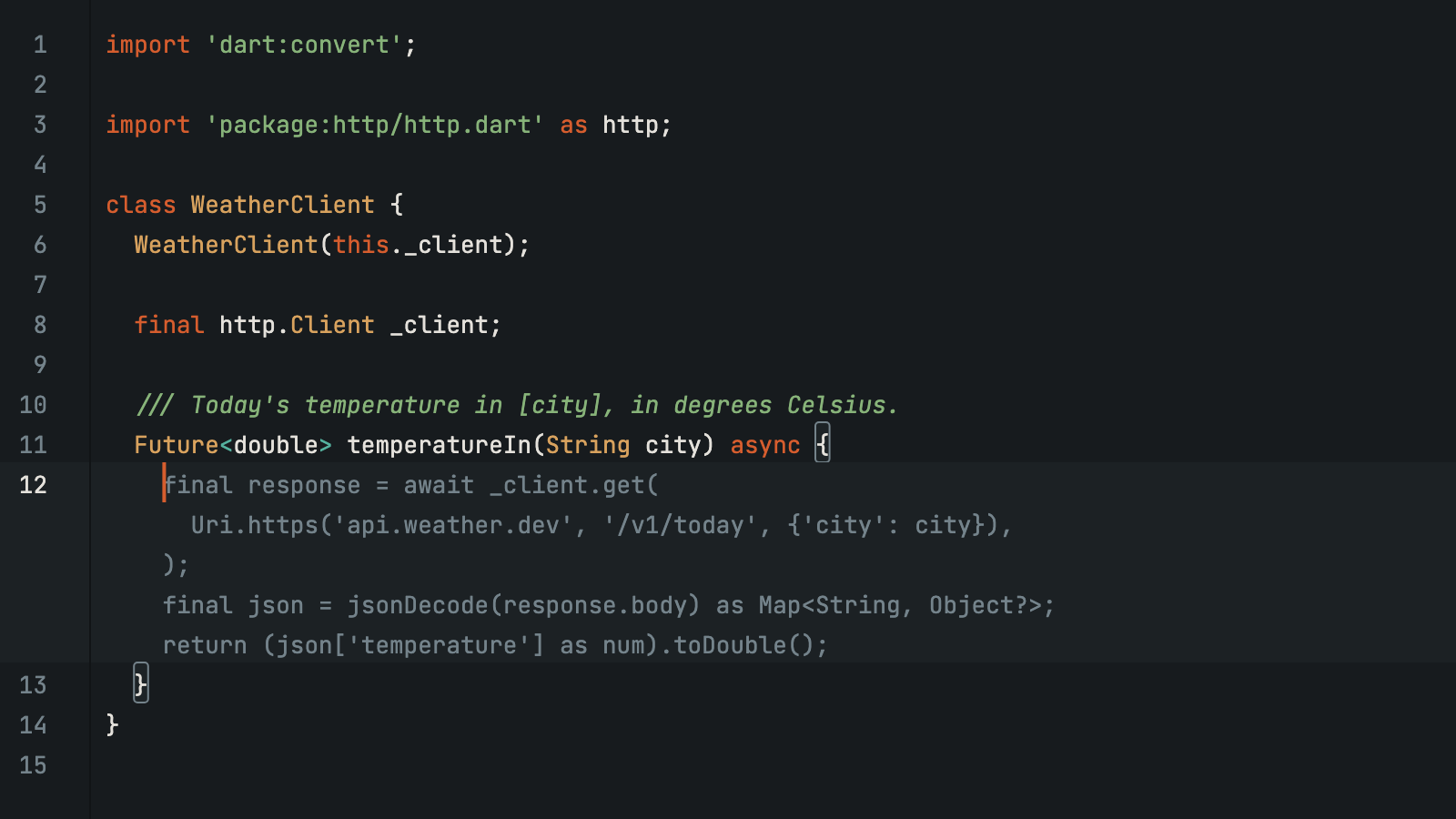
As you edit code, AI completion plugins stream ghost text directly into the Rope-backed editor buffer.
Keyboard Shortcuts#
| Action | macOS | Windows / Linux |
|---|---|---|
| Accept Full Completion | Tab / Option + Tab |
Tab / Alt + Tab |
| Dismiss Completion | Escape | Escape |
The status bar displays completion provider status and sign-in indicators.
Prediction Settings#
Configured under Settings -> Editor -> AI Completion:
-
Prediction Mode (
edit_predictions.mode):eager: Shows predictions automatically as you type.subtle: Shows predictions only while holdingAlt.
-
Provider (
edit_predictions.provider): ID of the active AI inline completion provider plugin.
Next Steps#
- Split Panes & Layout — Docking and splitting agent panes.
- C.O.R.G.I. Git Client — Reviewing commits and branch history.