
C.O.R.G.I. (Clean Organized Repository Git Interface) is Lumide's built-in visual Git client.
Opening C.O.R.G.I.#
-
Click the
+(Add Pane) button on any dock group header and select C.O.R.G.I. - Click the Git branch button on the Top Bar or Status Bar.
-
Or press
Cmd + 9(macOS) /Alt + 9(Windows / Linux) in the default JetBrains keymap (orCmd + Shift + G/Ctrl + Shift + Gin the VS Code preset).
When C.O.R.G.I. opens as a dialog, drag it by any of its header bars to move it. Drag the line beside the sidebar, or between the staged and unstaged diffs, to resize them; double-click it to reset. Sizes are kept between sessions.
Visual Commit Graph#
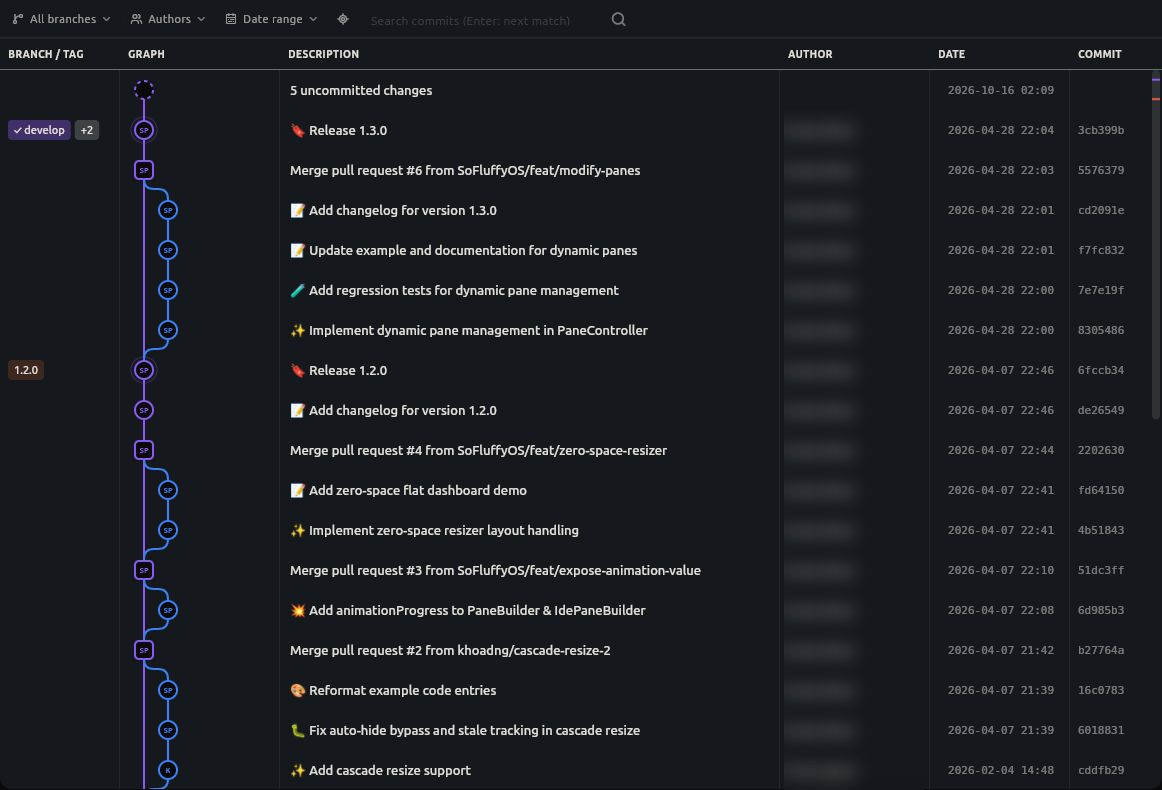
C.O.R.G.I. renders an interactive commit graph of every branch:
-
Color-Coded Branch Lanes: Parallel branches and merge points. Wide graphs scroll sideways (
Shift+ wheel or a sideways swipe). -
Badges: Local branches (
develop), remote branches (origin/main), tags (v1.0.0) and stashes. When a row's badges don't fit, a+Nbadge counts the rest; hover the cell to see them all. - Working Changes & Stashes: A row above HEAD shows your uncommitted changes (click it to review them). Stashes sit above the commit they were taken from, with Apply, Pop and Drop in the context menu.
- Inspector Panel: Click any commit or stash to view author avatar, email (click to copy), co-authors, message, SHA actions, and file diff stats. Click a file to see its changes. Hover a row's author to see their email.
-
Focus a Branch: Click a row's branch labels to highlight that branch's line (
Escclears it). The context menu can hide a branch or show only one. -
Filters: Narrow by branch, author or date. While a filter is active, the reset button (or
Esc) clears them. -
Search History: Search the whole history by message, author, or hash. Matches are highlighted;
Enter/Shift + Enterjump between them. -
Keyboard:
↑/↓(orj/k),Page Up/Page Down,Home/End, andHto jump to HEAD. -
Several commits at once:
Cmd/Ctrl-click to add or remove a commit,Shift-click orShift + ↑/↓for a range, then right-click to Cherry-pick, Revert or copy their hashes together. Cherry-picks apply oldest first; reverts undo newest first. A conflict pauses the rest until you continue.Escclears the selection. - Columns: Drag a column border to resize it; double-click the border to reset it. The scroll track marks HEAD, branches, stashes, matches and the selection.
Branches#
Switching Branches#
Click the branch name in the sidebar header to open the branch switcher:
-
Type to filter. Matching is fuzzy and ignores separators, so
fixloginfindsfix/login-bug; matches are highlighted. - Favorites and recently checked-out branches come first. Remote branches and tags appear as you type, or open their section.
-
↑/↓andEnterswitch without the mouse. If no branch has the name you typed,Enteron Create branch makes it from the current branch, keeping your uncommitted changes. - Manage Branches opens the Branches tab.
If local changes would be overwritten by a checkout, C.O.R.G.I. offers to stash them and switch.
Branches Tab#
The Branches tab in the sidebar lists everything in one tree:
-
Sections: Favorites, Recent, Local, Remotes (one folder per remote) and Tags. Branch names with
/are grouped into folders (a folder with just one branch is skipped, and folders holding only one folder merge intoteam/web); turn this off, sort by name instead of recent activity, collapse everything or refresh from the View Options button. - Long names are shortened in the middle, so both the prefix and the end stay visible. Hover a branch for its full name, upstream, and last commit.
-
Tracking:
↑2 ↓1shows commits to push and pull. A broken-link icon marks a branch whose upstream was deleted; a cloud icon marks one that was never pushed. - Graph: Click a branch to jump to its tip in the graph. Hover a branch to favourite it (★), hide it in the graph (eye), or check it out. Double-click also checks out.
- Context menu: Right-click for Checkout, New Branch from…, Merge into the current branch, Fast-Forward, Upstream (track a remote branch or stop tracking), Open Pull Request, Hide in Graph / Show Only This Branch, Favorites, Copy Name, Rename and Delete. Each item shows its shortcut.
-
Fetch (
f): Select a branch and pressfto fast-forward it from its upstream without checking it out; on a remote branch,ffetches its remote. Works on several selected branches too, and from the context menu. A branch with its own unpushed commits is left alone. -
Rename a folder: Right-click a local folder and choose Rename Folder…
to rename every branch inside it, including nested folders (
feature/…→feat/…). You see the renames before they happen. Only local branches change; pushed branches keep their names on the remote and still track them. - Remotes: Hover the Remotes header to add a remote, or a remote to fetch it. Right-click a remote to fetch, copy its URL, edit or remove it; right-click the header to fetch all.
-
Clean up:
Cmd/Ctrl-click orShift-click to select several branches, then right-click to delete them together. Branches that aren't merged ask again before a force delete.
Favorites and collapsed folders are remembered per repository.
Staging & Committing#
Staging Files & Hunks#
- Stage / Unstage (
+/-): Stage all or individual files. - Discard Changes (
↺): Revert uncommitted changes toHEAD. - Stage Hunk: When viewing a file diff, click Stage Hunk on any change block to stage only those lines.
Commit Composer#
- Type a summary on line 1.
- Optional: press
Entertwice to write an extended description. -
Press
Cmd + Enter(macOS) orCtrl + Enter(Windows/Linux) to commit.
With an AI completion plugin installed, the message box suggests the rest of your message as ghost text, in the style of the repository's recent commits; press
Tab to accept it or keep typing.
Click the wand button below the box to write the whole message without typing. To keep the box quiet while you type, turn off
Commit Message AI Suggestions (git.commit_ai_suggestions); the wand still works.
Click the history button to reuse a past message: type to filter, use the arrow keys and Enter
to pick one, and Load older for messages further back.
Drag the divider above the box to give the message more room; double-click it to fit the box to its text again.
Several Repositories#
In a multi-root workspace whose folders sit in several repositories, the Changes tab shows This Repository and All Repositories (N) above the list. A workspace with one repository looks as before.
-
Changes of every repository: All Repositories lists each repository under a header with its name (labelled as in the Files tree), branch and a dot in its color, then its
Staged and Changes files. Tick a file to stage or unstage it, right-click to discard it, or use the header's
+/-to stage or unstage everything in that repository (files that still have conflict markers are left out). Click a file to see its diff; C.O.R.G.I. switches to its repository. - One commit, several repositories: the header's checkbox picks the repositories the commit goes to; repositories with staged changes are ticked. Type one message and press Commit to N Repositories. Each repository commits in turn with its own hooks, after checking again what is staged, and a repository whose staged changes went away is skipped. Nothing is rolled back: when a repository fails (a hook says no, Git refuses), the others still commit, and a dialog lists every repository with what happened and why. The failed repository keeps its staged changes and the box keeps the message, so committing again retries just that one. Amend is not offered here; co-authors and sign-off apply to every repository. The wand and ghost text see the staged files of every ticked repository.
- Merged history: the graph area lists the commits of every repository, newest first by date, each with a stripe, dot and label in its repository's color (the same colors as the headers), its branches and tags, author, date and hash. Each repository keeps its own order. Click a repository's chip to hide or show its commits, right-click a chip to show only that repository, and All to show every one. History loads a page at a time per repository as you scroll. Click a commit's graph button, or right-click it, to open it in its repository's graph.
Every change C.O.R.G.I. makes to a repository, here too, waits its turn behind the other Git commands of that repository.
Reviewing Uncommitted Changes#
Click the graph's working-changes row to review every uncommitted change in one scroll, like a pull request's Files changed view:
-
Edit in place: Type in the review to change the file. Files open in a tab are edited through that tab; others are saved shortly after each edit.
Cmd + S/Ctrl + Ssaves the file at the caret and Save All saves every file; a dot on a file's header means it has unsaved edits. - Stage, unstage or discard a single hunk from the bar above it, or a whole file from its header. Discarding asks first; a discarded hunk can be undone in the editor.
- Viewed: Tick Viewed to collapse a file you've checked. It stays viewed until its changes change. Click a file's header to collapse or expand it yourself, or use Collapse All / Expand All in the review's header bar.
- Undo: Undo and redo work across files and scroll to each change they revert.
-
Navigate: Click a file in the list to jump to it;
F7/Shift + F7move between changes;Escreturns to the graph.
Removed lines show in red with their old line numbers beside the new ones.
Remote Operations#
The toolbar provides one-click remote actions:
- Fetch: Query remote for updates without changing the working tree.
- Pull: Fetch and merge remote changes into current branch.
- Push: Send local commits to remote tracking branch.
Add, edit, fetch and remove remotes from the Remotes section of the Branches tab.
Keyboard#
C.O.R.G.I. follows lazygit's keys. Click a panel (or move into it), then press ? for the full list. Every key except the arrows,
Enter and Esc can be changed in Settings > Keymap (search for
C.O.R.G.I.).
| Everywhere | |
|---|---|
j / k | Move down / up (as do the arrows) |
z | Undo the last checkout, commit, merge, pull, rebase or reset |
? | Show the shortcuts |
| Changes | Branches | ||
|---|---|---|---|
Space | Stage / unstage | Space | Check out |
a |
Stage all / unstage all | - |
Previous branch |
d | Discard | n | New branch from selected |
c |
Write commit message | f |
Fast-forward / fetch |
A | Amend last commit | M | Merge into current |
s | Stash | R | Rename |
p / P | Pull / push | d | Delete |
f | Fetch | y | Copy name |
r | Refresh | u | Upstream |
o | Open pull request | ||
/ |
Filter (Esc or ↓ returns) |
In the diff, Tab switches between staged and unstaged and [ / ]
step through files. Cmd + Enter / Ctrl + Enter commits from the message; the review keeps
F7 / Shift + F7.
Undo reads git's reflog. It switches back after a checkout, keeps an undone commit's changes staged, and moves the branch back after a merge, pull, rebase or reset without touching your local changes (if they would be overwritten, nothing happens). It always says what it will do first. Press
z again to redo.
Open pull request opens the "new pull request" page of the branch's remote: GitHub, GitLab, Bitbucket, Azure DevOps, Gitea and Forgejo are supported.
Next Steps#
- Diff & Comparison Viewer — Review code changes.
- Merge Conflict Resolution — Single-pane conflict editor.