
Lumide provides integrated debugging powered by language providers and the Debug Adapter Protocol (DAP).
Starting a Session#
Start or manage debug sessions from the TopBar debug controls or keyboard shortcuts:
- Start Debugging:
F5,Shift + F9, orCtrl + D -
Run Without Debugging:
Shift + F10,Ctrl + R, orCtrl + F5 -
Stop Session:
Shift + F5orCmd + F2(macOS) /Ctrl + F2(Windows/Linux) - Open Debug Panel: Shown in the left pane when a session starts. The regular Output pane opens in the bottom region if it is not already open, with the session's output channel selected.
The compact Debug header shows the session state (Launching, Running, Paused, or
Terminated) as a short text label.
Debug Toolbar#
When a session is active, the debug toolbar exposes execution controls:
| Action | Shortcut | Description |
|---|---|---|
| Continue | F5 |
Resume execution until the next breakpoint. |
| Pause | — | Pause the running target. |
| Step Over | F10 |
Advance one line without stepping into function calls. |
| Step Into | F11 |
Step inside the function call at the cursor. |
| Step Out | Shift + F11 |
Run until the current function returns. |
| Stop | Shift + F5 / Cmd + F2 |
Terminate the active debug session. |
| Exceptions | — | Choose Ignored , Uncaught , or All Exceptions from the three-dot menu. |
The three-dot menu also shows or hides Stacktrace, Variables, and Breakpoints. On narrow panes, the step actions appear in the menu.
Debug Panel Layout#
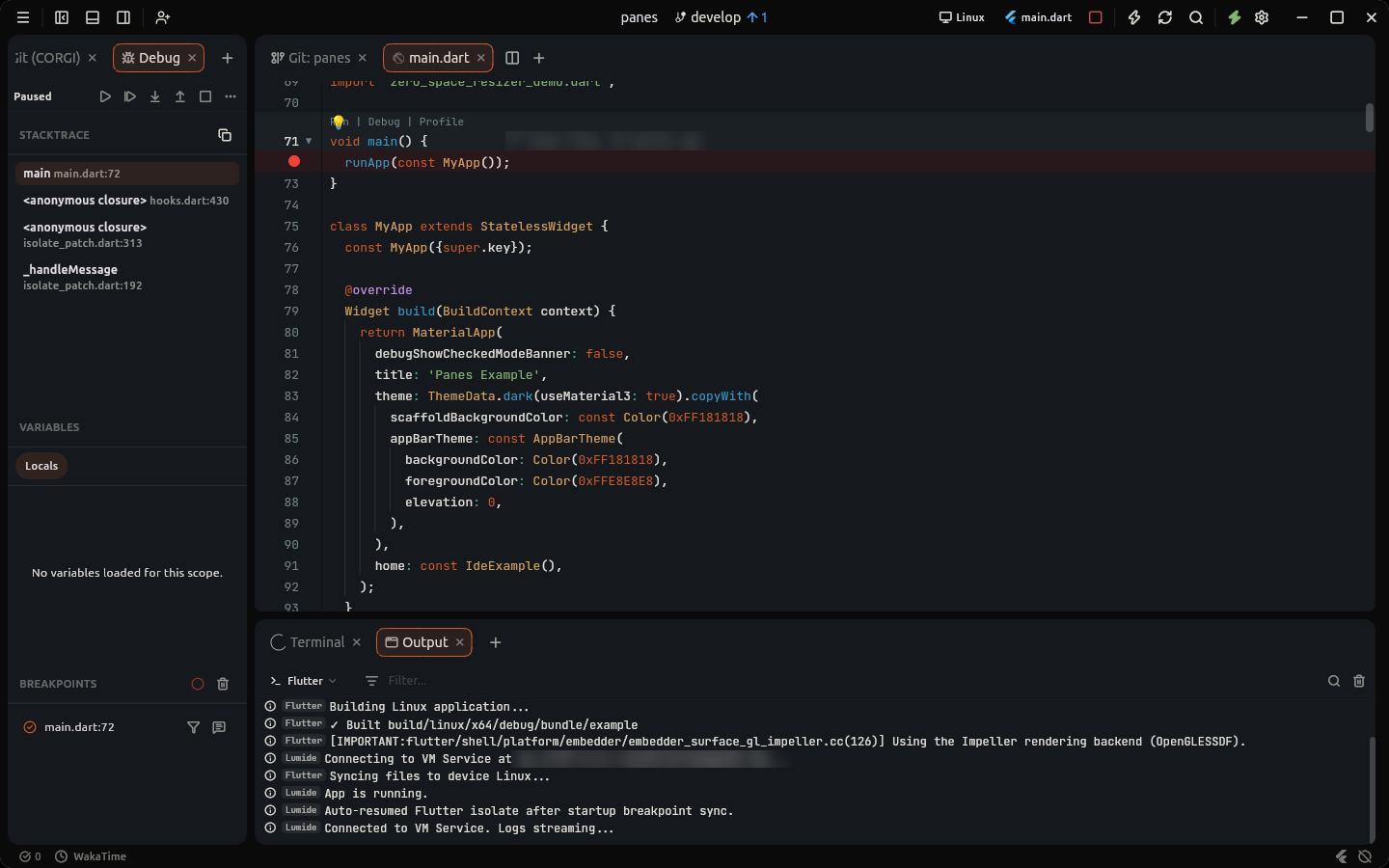
The Debug panel organizes execution state into three sections in the left pane:
Stacktrace#
Displays active call stack frames when paused. Click any frame to open its source file and navigate directly to the execution line. Use the header copy button to copy the full stack trace to the clipboard.
Variables#
Displays scoped runtime state for the selected stack frame. Switch between scopes (e.g. Locals, Globals) using pill tabs, and expand structured variables to inspect nested fields and values.
Breakpoints#
Lists all registered line breakpoints across the workspace. Each entry indicates verification status and source line. Click any entry to jump to that file and line. The header menu provides Enable All, Mute All, and Remove All.
Output#
The regular Output pane opens separately when debugging starts. It selects the session's output channel and provides text filtering, log level toggles (INFO,
WARNING, SEVERE), and timestamps.
Tests Pane#
Open Tests from the + (Add Pane) menu to see every Dart test in the workspace with its last result, before running anything. Run, debug, or open any file, group, or test from it. In a workspace of several folders, test files are listed under their folder.
In a workspace of several folders, a test runs in the workspace folder that holds it, from its package: the nearest folder above it with a
pubspec.yaml. Lumide tells the plugin both, from the Tests pane and from Run
lenses.
When a plugin runs tests, the run opens its own Tests pane, titled after the run: a tree of groups and tests with pass, fail, and skip counts.
- Select a test to see its full failure. Click a file location in the stack trace to open it.
- Double-click a test, or press Enter, to open its source. Use the arrow keys to move and fold groups.
- Right-click a test to run, debug, open it, or copy its name or error.
- The arrow buttons jump to the previous or next failed test, and the filter button shows failed tests only.
If the plugin supports it, the header can stop the run, rerun it, rerun only failed tests, and open the test output. Hover a test or group to run or debug just that one. Rerun on Save runs the pane's tests again whenever you save.
You can run different tests at the same time. Running the same tests again, from a lens, the All Tests list, or the pane's Rerun, shows the new run in the pane of the last one; tests of the same name in another folder or package get their own pane. Otherwise a new run reuses the pane of a finished run, so panes do not pile up. Pin a pane to keep its results: other runs, even of the same tests, open in another pane, and only the pane's own Rerun and Rerun on Save run in it. A run's tests run again only once it finishes; stop it first. Closing a pane stops its run.
Rerun Last Tests and Rerun Failed Tests are in the Run menu and the Command Palette; bind them to keys in Keymap settings.
In the Editor#
Each Run lens shows its test's last result: ✓ passed, ✗ failed, ⊘ skipped, ◌ running. Failed tests are underlined where they failed and listed in the Problems panel.
When a plugin reports coverage, for example Flutter: Run Tests with Coverage, covered lines are shaded green and missed lines red. The highlighter button in the run's Tests pane hides or shows it.
Next Steps#
-
Launch Configurations — Configure
.sofluffy/lumide/launch.jsonand import from VS Code. - Breakpoints — Managing line breakpoints and gutter toggles.