
Local History automatically archives a snapshot of every file whenever you save (Cmd+S /
Ctrl+S), independent of Git.
Accessing Local History#
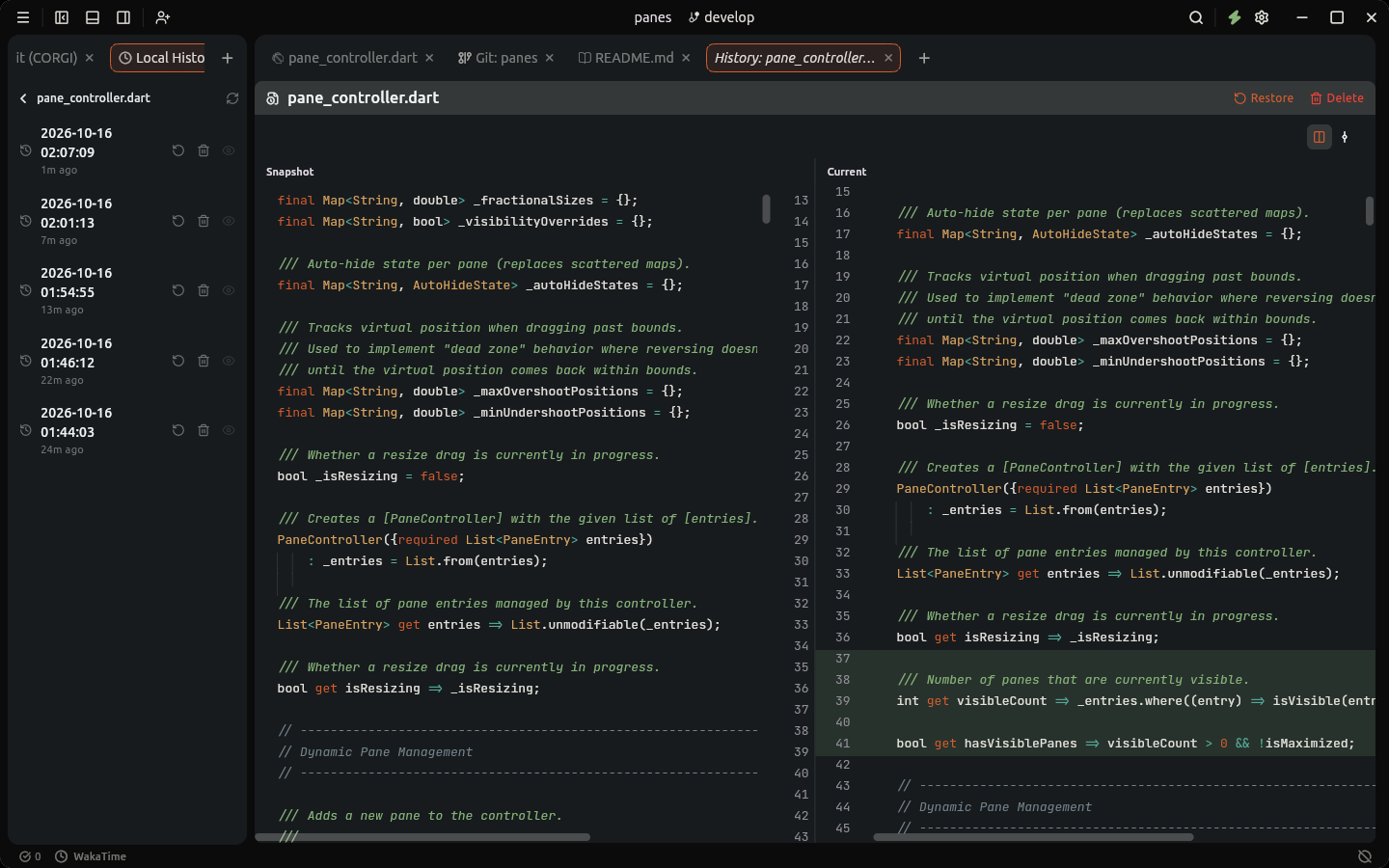
- Right-click inside the editor or on any file in the File Tree.
-
Select Open Local History (or click the
+Add Pane button on any dock group header and select Local History). - A chronological list of saved versions displays with relative timestamps (e.g. 5 minutes ago, Today 10:14 AM).
Several Folders#
In a multi-root workspace, Local History lists the files of every folder, each under its folder's name. Right-click a folder in the Files tree, or a workspace folder's row, and choose View Local History to list only the files in it; the back arrow shows the whole workspace again.
History is kept per file, not per workspace: removing a folder hides its history, and adding the folder back brings it back. Files of a folder added from inside a folder Lumide skips, such as
node_modules/my-package or build/generated, are recorded too.
Comparing & Restoring Revisions#
- View Diff: Click any snapshot to open a side-by-side diff comparing that revision (left) to your current file (right).
- Restore: Click Restore Version in the diff header to overwrite the current editor buffer with that revision. The file's content before the restore is kept as a version, so a restore can be undone the same way.
Settings#
Configured under Settings -> General:
-
Enable Local History (
files.local_history):true(default) orfalse. -
Max Versions per File (
files.local_history_max_versions): Maximum historical snapshots retained per file (default:50). -
Max File Size (
files.local_history_max_file_size_kb): Size ceiling in kilobytes; files larger than this threshold are skipped (default:5120KB / 5 MB).
Snapshots are stored in your user folder (~/.sofluffy/lumide/local_history/), shared by every workspace; both limits apply to each file, whatever folder it is in.
Remote and Shared Workspaces#
- Remote SSH: saves on the host keep their versions on your computer, kept for the host and the path, apart from a file with the same path on your computer or another host.
- Sharing your workspace: you keep the history of every save in the folders you share, yours and what guests save into your files.
- As a guest: the host keeps the history of their files, so your Local History lists none of them and says the host keeps it. Versions of your own files are never shown for, or restored into, the host's.
Next Steps#
- Workspaces & Loose Files — Multi-root folders and standalone files.
- Code Intelligence & LSP — Compiler-backed intelligence.