
Lumide includes a synchronized live preview for Markdown (.md, .mdx, .markdown) documents.
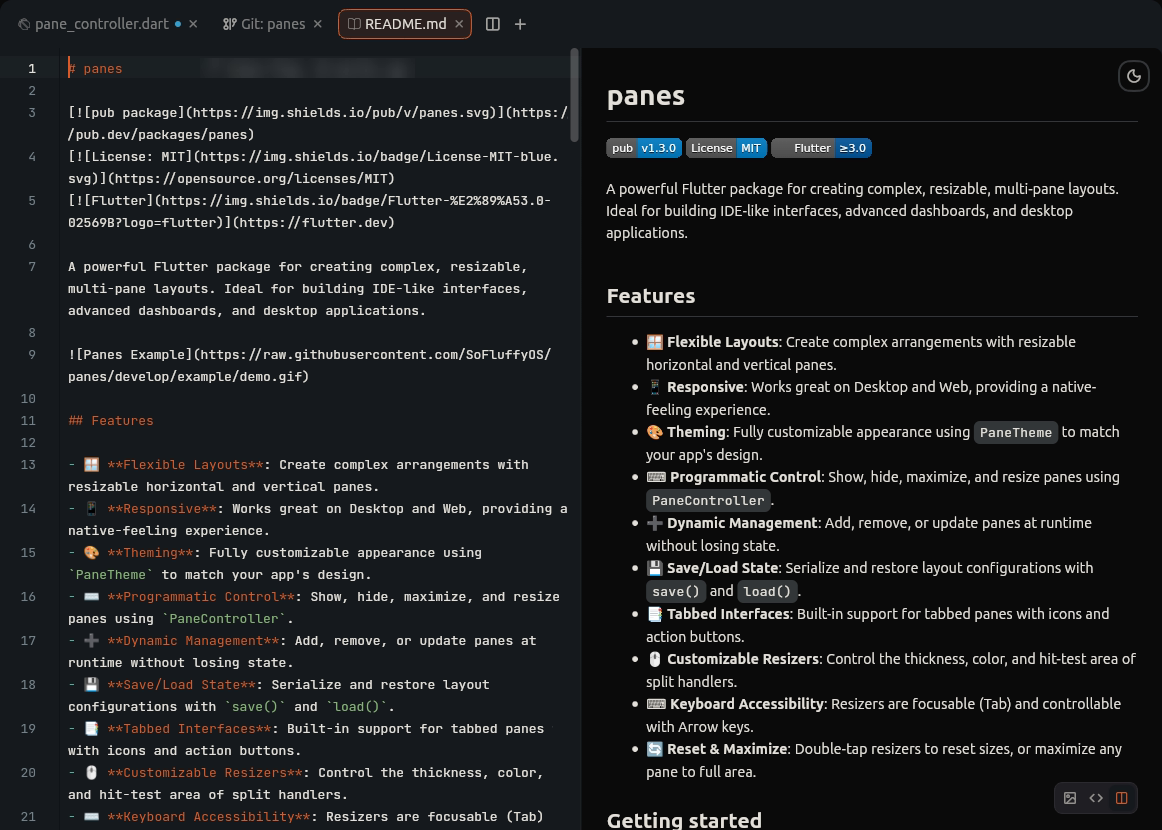
Display Modes#
Markdown documents open in Split View by default. Use the floating mode switcher at the bottom-right of the editor canvas to toggle modes:
- Edit Source: Pure code editor buffer.
- Split View: Side-by-side editing and synchronized live preview.
- Preview: Full-pane rendered Markdown preview.
Synchronized Scrolling#
Scrolling either the editor or the preview automatically synchronizes the other pane using proportional scroll tracking. Updates from editing are debounced (200ms) to ensure instantaneous input performance without blocking the editor.
Preview Features#
- Theme Toggle: Switch the preview pane between Light and Dark mode using the sun/moon icon in the top-right corner.
- Syntax Highlighting: Code blocks match the active IDE syntax theme and include horizontal scrolling and a one-click copy button.
-
Mermaid Diagrams: Code blocks tagged with
mermaidrender as diagrams in the preview's colors: flowcharts, sequence, class, state and ER diagrams, Gantt and pie charts, mindmaps, git graphs and more. A diagram wider than the preview shrinks to fit. While you type, the last diagram stays until the code draws again; code that never drew shows with the line at fault. - Links & Navigation: Relative file links open directly in the IDE workspace; external links open in your default browser.
-
Rich Images & SVGs: Supports raster images, inline
<svg>, remote badges (Shields.io), and local vector assets with caching. - GitHub Flavored Markdown (GFM): Headings, interactive-style task checkboxes, tables with column alignment, strikethrough, blockquotes, and HTML formatting.
Next Steps#
- Navigation & Quick Open — File search and symbols.
- The Code Editor — Editor features and shortcuts.