
Lumide displays real-time compiler diagnostics, type mismatches, and lint rule violations as you type.
Editor Squiggles#
- 🔴 Red Squiggles (Error): Syntax errors or type violations that prevent compilation.
- 🟡 Yellow Squiggles (Warning): Unused variables, deprecations, or lint violations.
- 🔵 Blue Squiggles (Info / Hint): Style suggestions or dead code indicators.
Hover over any squiggly line to read the description and rule name. In Vim mode, jump between diagnostics using
]d and [d.
Problems Panel#
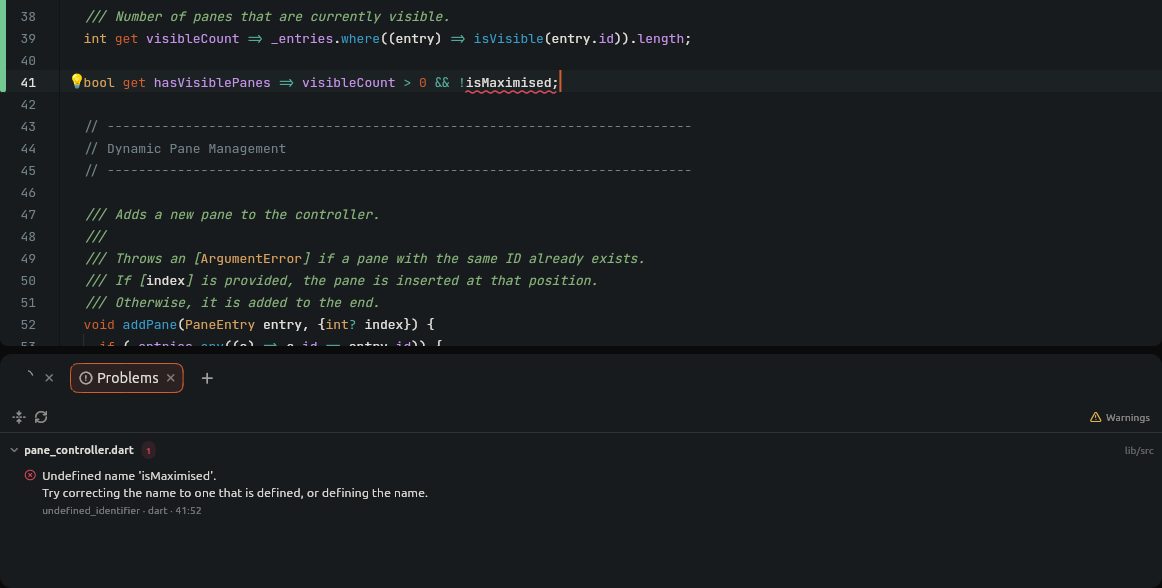
Click the Issue Count indicator in the Status Bar or add a Problems
tab via the + (Add Pane) button:
- Issues are grouped hierarchically by file. In a workspace of several folders, files are listed under their folder.
-
Copy: Right-click a problem, a file or the toolbar to copy problems as
[ERROR] lib/main.dart:3:5: message (code), with paths from the file's workspace folder. - Filter by Severity: Toggle Errors Only or Warnings Only buttons.
- Search: Filter diagnostics by keyword or file path.
- Jump: Click any issue to open the file and position the cursor on that line and column.
Quick Fixes (Option + Enter / Alt + Enter)#
When an automated fix exists, a lightbulb appears:
- Place cursor on the affected code.
-
Press
Option + Enter(macOS) orAlt + Enter(Windows/Linux) (orCmd + ./Ctrl + .in VS Code preset). -
Select an action (e.g. Import library, Add missing argument, Remove unused variable) and press
Enter.
Settings#
Under Settings -> Editor:
-
Show Diagnostics Inline (
editor.diagnosis.show_inline):false(default) ortrue. -
Show Diagnostics on Hover (
editor.diagnosis.show_hover):true(default) orfalse. -
Show Diagnostics in File Tree (
file_tree.show_diagnostics): Highlights problematic files in the file explorer.
Next Steps#
- Flutter & Dart Support — Hot Reload and widget tools.
- AI Code Assistant — Ghost text code suggestions.