
Lumide's editor is built on a custom Rope data structure and GPU-accelerated text layout.
Edits made while a file is opening remain in the buffer and are backed up. Reloading or reopening with another encoding applies only while the same session remains unchanged; typing, renaming or closing the tab cancels an outdated load. Reopening with a UTF-8 BOM or UTF-16 BOM encoding preserves the first characters when the file has no BOM.
Editor Features#
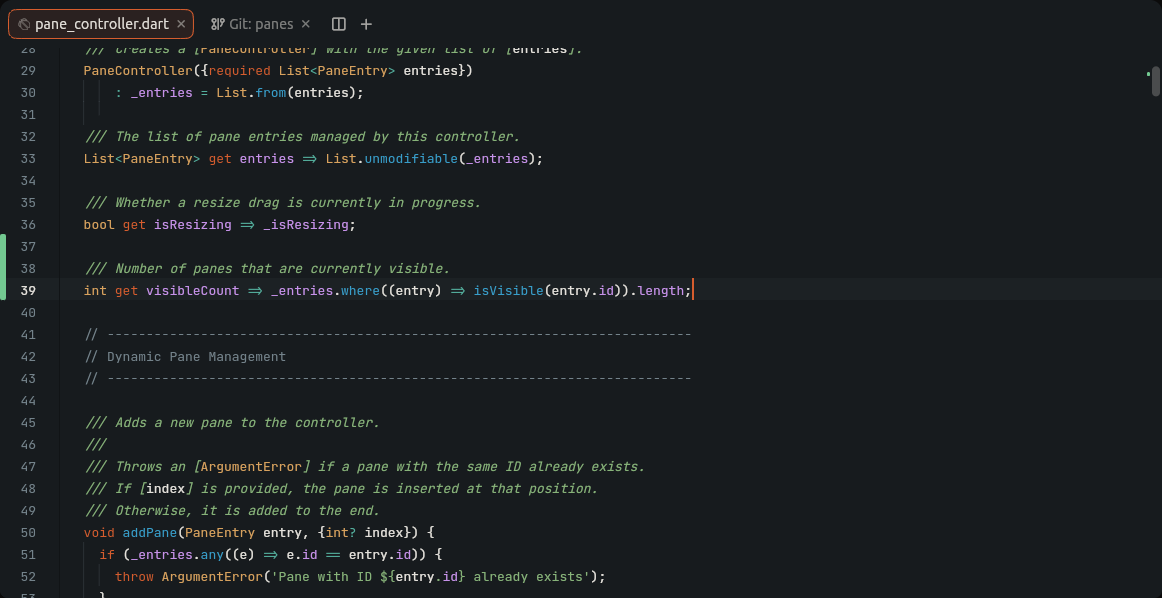
Large File Handling#
- O(log n) Operations: Insertions, deletions, and splits touch only affected Rope nodes.
- Virtualized Viewport: Only visible lines are measured and rendered. Opening files with 100,000+ lines does not block the UI.
- Memory Efficiency: Memory scales with edits, not file size.
Soft Wrap#
- Toggle via the Command Palette (Toggle Soft Wrap).
- Setting:
editor.soft_wrap(default:false). - Wraps long lines to the viewport width while preserving line indentation.
- Line numbers only increment on logical line breaks.
Line Numbers#
-
Toggle via Settings -> Editor -> Show Line Numbers (
editor.show_line_numbers). -
Vim relative line numbers can be enabled separately under Settings -> Editor -> Vim Relative Line Numbers
(
editor.vim_mode.relative_line_numbers).
Cursor Shapes#
Cursor shape adapts to mode:
- Bar: Insert mode.
- Block: Vim Normal and Visual modes.
- Underline: Replace mode.
Bracket Matching#
When the cursor sits next to (), [], or {}, both brackets highlight.
-
Jump to matching bracket:
Ctrl + M(macOS) /Ctrl + Shift + M(Windows/Linux) or%in Vim mode.
Undo#
Undo steps follow how you edit, as in IntelliJ:
- Typing groups by word: a space after a word starts a new step, and Enter goes with the word you type after it.
- Backspaces group, and so do forward deletes; one that joins two lines starts a new step.
- Pasting, commands such as formatting, a pause of over a second, or moving the caret start a new step.
- Undo and Redo put the caret back where it was. In a shared workspace, Undo reverts only your own edits, and the caret follows everyone else's.
Binary Files#
A file holding binary data, such as an archive or a font, opens as a placeholder with its type and size instead of garbled text. Open with Default App and Reveal in Finder (Reveal in File Manager) show for files on this machine; Open Anyway as Text loads it into the editor, from the host in a remote or shared workspace, with the unsaved edits you made the last time you opened it as text. Saving never writes over a binary file you have not opened as text, and a file that turns binary on disk while open shows the placeholder. UTF-16 text without a byte order mark opens as text.
Common Editing Shortcuts#
Shortcuts below reflect Lumide's default JetBrains keymap preset. If you choose another preset (such as VS Code or Sublime) in Settings, shortcuts adapt accordingly.
| Action | macOS | Windows / Linux |
|---|---|---|
| Copy Line (nothing selected; selects the line) | Cmd + C |
Ctrl + C |
| Duplicate Line | Cmd + D | Ctrl + D |
| Delete Line | Cmd + Backspace |
Ctrl + Y |
| Move Word Left / Right | Option + Left / Right |
Ctrl + Left / Right |
| Delete Word Backward | Option + Backspace |
Ctrl + Backspace |
| Delete Word Forward | Option + Delete |
Ctrl + Delete |
| Toggle Line Comment | Cmd + / |
Ctrl + / |
| Toggle Block Comment | Cmd + Option + / |
Ctrl + Shift + / |
| Indent / Outdent | Tab / Shift + Tab |
Tab / Shift + Tab |
Next Steps#
- Multi-Cursor Editing — Multiple cursors and column selection.
- Code Folding — Collapse syntax blocks and imports.
- Find & Replace — In-buffer search and regex replace.
- Markdown Live Preview — Synchronized split preview for Markdown.