
Share the folders you have open and edit together, with people anywhere: they open a link, in Lumide or in a browser, and you let them in. Everyone sees each other's carets and edits as they happen. Files stay on your machine.
Share#
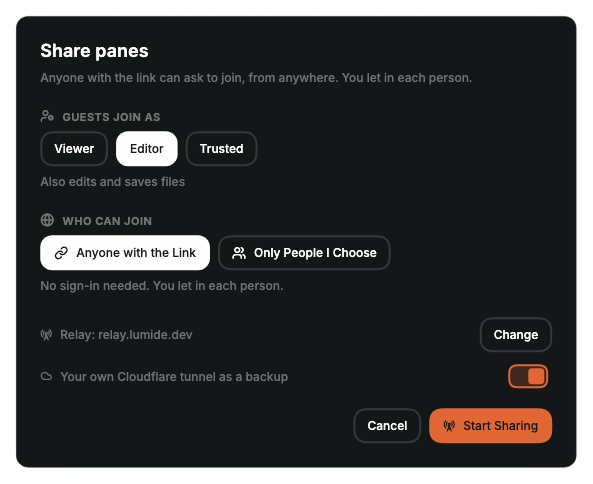
- Click the share button (a person with a plus) in the title bar, or run Collaboration: Share Workspace… from the Command Palette.
- In the dialog, pick the role guests get: Viewer, Editor or Trusted. The default comes from Settings → Collaboration → Default Guest Role.
- Pick who can join: Anyone with the Link, or Only People I Choose. See Share over the internet.
- In a workspace of several folders, the dialog lists them under Folders, all checked. Uncheck the ones guests should not see; at least one stays checked. A folder inside a checked folder is shared with it, also when the checked folder was opened through a link.
- Click Start Sharing.
Lumide shows each step while it gets your link ready, such as checking the relay or downloading cloudflared
the first time. Cancel stops sharing before it starts; Hide closes the dialog, and the share button opens it again.
Then Lumide copies the invite link, such as https://join.lumide.dev/#relay=relay.lumide.dev&r=…, and shows the
Sharing dialog. The status bar shows Sharing. Send the link to the people you want to invite. Guests see you by your GitHub login, or as
Host when you're not signed in, never by your computer's name. It opens in a browser, where they can join right there or open Lumide. People on the same network also see your workspace listed when they join.
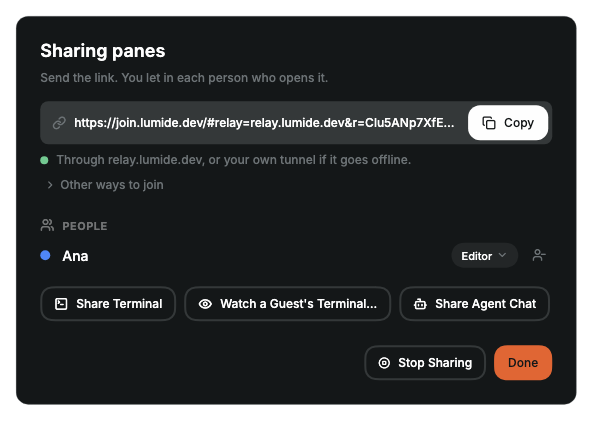
Under the link, the dialog says how people reach you now, with a dot: green when they can join from anywhere, amber while Lumide falls back to your own tunnel or reconnects.
Other ways to join has the lumide:// link, which opens straight in Lumide, and the address on your network.
Guests reach only the shared folders: files outside them, even through links inside them, stay out of reach, and guests don't see where you are when you work in a folder you don't share. See What guests can reach.
Guests see the shared folders by the names you see them by, names from a workspace file included, and in your order. While you share, the Files tree marks each shared folder with the sharing icon (a radio tower), and the share button's tooltip says how many of the workspace's folders you share, such as Sharing 2 of 3 folders.
To change what you share while sharing, check or uncheck folders under Folders in the Sharing dialog. Guests see the change at once, and when you move or rename a folder. When you stop sharing a folder, guests' tabs, and the terminals and programs they started there, close; changes they had not saved there stay with you until you stop sharing, and Lumide offers to Open those files so you can keep or discard them. If you stop sharing before opening them, Lumide asks: Open and Stop keeps the changes in their tabs, Discard and Stop drops them. A folder you remove from the workspace, or that is deleted or moved away on your machine, the first one too, leaves the share; one that comes back is not shared again until you check it: after Retry or Locate…, or once you add it again, Lumide says it is back and offers Share. Sharing stops when no shared folder is left, opening any such changes first. It also stops after an hour with no guest connected, so a share you forgot does not stay open. Closing the workspace, or opening another folder or workspace in its window, stops sharing too: guests are told you closed the workspace. A workspace file that opens again because its first folder changed goes on sharing, with its folders as they are now. A folder you add to the workspace while sharing is not shared until you check it, unless it is inside a shared folder: guests reach it through that folder already.
The editors you have open keep their unsaved changes and undo history when sharing starts and stops.
You can share a folder from a window on your own machine. Sharing serves files from your machine's disk, so a Remote SSH window, a browser window and a guest window in someone else's session don't share: Share Workspace… and the share button say so and start nothing. To share a folder that lives on an SSH host, open it in a local window, such as through a mount.
Let people in#
Each person who asks to join shows up as a notification. Click Review… to see who they are and where they join from, then pick a role and click Allow, or Decline. If you close the dialog without answering, the notification comes back. People you don't answer within 2 minutes are turned away.
The first time a device joins, you and the guest both see a 6-digit code. Check that the codes match before you allow them. This makes sure nobody on the network is listening in the middle. After that, Lumide remembers the device, and you only allow or decline.
| Role | Can |
|---|---|
| Viewer | Read files, follow along, use language features such as hover and go to definition, watch Agent Chats you share and leave you agent comments to review |
| Editor | Also edit, save, create and delete files, and watch terminals you share |
| Trusted |
Also run terminals, tasks and Git on your machine, change
.git
, settings and agent instructions (see
What guests can reach
), type in terminals you share, send messages and agent comments straight to Agent Chats you share, and ask you to restart a language server
|
Lowering a guest's role takes effect at once: if a Trusted guest becomes an Editor, their terminals and running programs on your machine end.
While you share, the title bar shows everyone's avatar, ringed in the color of their cursor, with the GitHub picture of anyone who signed in with GitHub. Hover over an avatar for the name. Click the sharing button (a radio tower) there, run Collaboration: Manage Guests…, or click Sharing in the status bar, to open the Sharing dialog:
- copy the invite link, or the others under Other ways to join;
- check or uncheck the folders you share;
- change a guest's role from the menu beside them, or remove them;
- share the active terminal, or watch a guest's;
- share the active Agent Chat;
- stop sharing.
Stop Sharing ends every guest's session. Viewers' and editors' windows close, and in a browser they go back to the start page, which says why; their edits are already with you. Trusted guests are told the host stopped and asked whether to close the window, or go back, and may Stay, read only. Removing a guest works the same way for that guest. A dropped connection is different: the guest's window reconnects on its own, and their caret is hidden until they are back. A guest who is not back within two minutes leaves the workspace and joins again from the invite link. Your editors go on with their text and undo history.
Join#
-
Run Collaboration: Join a Session…, or click Join a Session… on the Welcome screen.
-
Paste the invite link, the
https://one or thelumide://one, and click Join, or click someone under On Your Network. An invite link already on your clipboard is filled in for you.Opening an
https://join.lumide.devinvite shows the join page in your browser: click Open in Lumide there. Clicking alumide://invite in Slack, Mail or a browser opens Lumide, or the window you used last, with Join a Session and the link filled in. Lumide never joins on its own: check who you are joining and click Join. A browser may first ask whether to open Lumide. -
The dialog shows how the join is going. The first time you join a host, it shows a 6-digit code. Tell the host, so they can check it matches theirs. Cancel stops waiting.
When the host lets you in, the workspace opens in a new window, with the folders the host shares as the folders of the Files tree, Quick Open and Project Search. When the host shares another folder or stops sharing one, your window follows and tells you; the folder you joined with stays listed, marked
not shared, until the host shares it again. Folders show by the host's names for them and in the host's order, the folder you joined with first; while it is not shared, the title bar names the first shared folder and counts only shared ones, and Quick Open searches a single shared folder without folder names. The host chooses the folders: adding, removing, moving or renaming them, or saving the workspace as a file, says so, and
Reveal in Finder, trust and Switch Workspace are not offered for the host's folders. A new terminal starts in the folder of the file you are editing. Its title bar shows the host's avatar, with a crown in the corner, the other guests, and a Leave button; the status bar shows
Shared: host name. If the connection drops, Lumide reconnects on its own, and hides the others' carets until it is back. If the host cannot be reached for two minutes, as when they stopped sharing or went offline, the title bar shows
Disconnected and Lumide tells you why, and how many files have changes the host may not have.
Save My Changes keeps copies of them: on the desktop in a folder in Downloads, named for the host and the time, and in a browser as a
.zip. Join Again opens the invite link again once the host shares, saving those copies first, so rejoining, which loads the host's files, loses nothing of yours.
Your editors follow the host's editor settings for the host's files, so what you type, Format Document and format on save indent and format them as the host's own editors would. See The host's editor settings.
As a viewer, editors are read-only until the host gives you another role. Completion, hover, go to definition and diagnostics come from the host's language servers, and Git status from the host's Lumide, whatever your role, including servers from the host's plugins. You need no language server or plugin of your own. Running programs on the host, such as terminals, tasks and Git commands, needs the Trusted role, so ask the host for it.
Your role is the workspace's trust: as a Trusted guest the workspace is trusted, with each folder's launch.json
read from the host and Run and Debug on the host's machine. Below Trusted it stays restricted, and the
Restricted badge in the title bar says to ask the host for the Trusted role. It changes as soon as the host changes your role. What you trusted on your own computer never counts for the host's folders.
The host keeps the Local History of their files, what you save included; your own Local History lists none of them.
The host's editor settings#
For the host's files, three settings are the host's, as its own editor resolves them for each file: from the file's folder, the host's workspace and user settings, and language overrides such as a different tab size for Go.
| The host's, for its files | Yours |
|---|---|
editor.tab_size, editor.insert_spaces, editor.format_on_save |
everything else: soft wrap, fonts, line numbers, indent guides, theme, keymap, Vim mode, … |
They follow the host as it changes them, and folders shared later bring their own. Your own values for them still apply to files on your machine. The Settings editor marks these settings From and the host's name; the host changes them in its own settings. Files keep the line endings and encoding they have on the host.
A host on an older version of Lumide gives no settings: your editors use your own, and Format Document and format on save keep the indentation each file has, with tabs or as many spaces as it uses.
The host sends only these three values, nothing else of its settings, such as terminal profiles, shells or plugin configuration, and only for the folders it shares. Your window takes only tab sizes from 1 to 16 and true or false for the others, and ignores anything else.
Language servers#
The runtime popup in the status bar lists every language server the host runs, each marked Host, with its status on the host and your connection to it: Connected, Connecting, You disconnected, or Not in use here when no file you have open uses it. It updates as servers start, stop, restart or fail on the host. Language servers installed on your own machine are not listed: in a shared workspace the host's are the ones that count.
- Reconnect reopens your connection to the host's server, and Disconnect drops it for this session. Both change only your connection; the host's server keeps running for the host and everyone else.
- When the host restarts a server, or it crashes and comes back, you reconnect on your own once it is ready, unless you disconnected from it.
- A trusted guest can click Ask host to restart, for a server that is stuck, for example. The host sees a notification, Review… shows who asks to restart which server, and the host clicks Restart or Decline. Nothing restarts unless the host agrees. You are told whether the host restarted it, declined, or did not answer within two minutes. While one request for a server waits, more requests for it wait for the same answer, and once the host has answered, the server can't be asked about again for 30 seconds. A request ends if you leave or lose the Trusted role before the host answers.
Guests can't stop, restart or disable the host's servers themselves, and AI completion servers, which run for the host's own account, are not listed.
Go to Symbol in Workspace asks the host, which searches every language server it runs for the shared folders, not only those of files you have open, and lists each symbol once. The Problems panel lists the problems those servers report on every file in the shared folders, under each folder, as the host's Problems do, also for files you never opened; it follows within a moment as they change. With a host on an older version of Lumide, both come from the servers of the files you have open, as before.
When the host shares only some of its folders, its language servers keep the others from guests: answers, diagnostics and links about files outside the shared folders don't reach guests, absolute paths to them in hovers, diagnostics and completions read
…, and completions or fixes that would write such a path are left out. Servers are listed with the shared folders' labels. You don't need to trust the workspace on your side to use the host's servers: they follow the host's settings.
Git#
The host's Lumide publishes the Git status of the shared folders to every guest, in the desktop app and in a browser alike. Guests run no Git for it, and everyone sees the same status, as the host's own refreshes find it.
| Role | Git |
|---|---|
| Viewer, Editor | Status colors and ignored files in the Files tree, gutter markers, conflicts, and the branch indicator with the branch, or the commit when HEAD is detached. C.O.R.G.I., blame, switching branches, and Fetch, Pull and Push say Git needs the Trusted role . |
| Trusted | The same, and blame, C.O.R.G.I., switching branches, and Fetch, Pull and Push, which run on the host. |
When the host changes your role, the colors and markers stay; only what runs Git on the host follows the role. Gutter markers compare your text with the file's last committed version, which the host reads for you. That version can differ from what is on the host's disk now, and any guest can see it for a file in a shared folder, as they can see the file. Rolling back changed lines from the gutter needs the Trusted role.
A guest of a host whose Lumide does not publish Git status gets Git with the Trusted role only, as before.
Git stays in the folders the host shares. A folder shared from inside a larger repository is a repository of its own for you: you see its changes only, and the rest of the repository stays out of sight. C.O.R.G.I. lists every commit of the repository, but a commit's files and diffs show only the shared folders' files. See Git in a Shared Workspace.
Share over the internet#
People join from anywhere with no account: they open the link and wait for you to let them in. The link reaches your machine two ways:
-
The relay,
relay.lumide.devby default: a small server that passes the connection along. Opening a room there asks you to sign in with GitHub once, so strangers can't use it. If the relay is offline when you start, Lumide doesn't ask and uses your own tunnel. -
Your own tunnel: a Cloudflare quick tunnel
from your machine, with a random
trycloudflare.comaddress and no account. The first time, Lumide downloadscloudflared(about 20 to 55 MB, checked against its published checksum) into~/.sofluffy/lumide/collab/bin, or uses the one on yourPATH.
The link names both. Guests try the relay first and your tunnel if the relay is down, and a guest whose connection drops comes back through whichever answers, without asking you again. When the relay goes away and comes back, Lumide opens your room there again, so links you sent keep working. If your tunnel restarts, its address changes: the Sharing dialog shows the new link, and guests who joined through the relay are not affected.
Only People I Choose lets in only the GitHub logins you pick from your contacts or add. They sign in with GitHub to join, and the relay turns everyone else away, and so does your machine. Their GitHub sign-in goes only to the relay, never to your tunnel, so while the relay is down they can't join through your tunnel. You still let each one in: your approval prompt shows their GitHub login.
Your contacts are the GitHub logins you have added and the people you let in after they signed in. They are kept only on this device, in
~/.sofluffy/lumide/collab/contacts.json. Collaboration: Remove Contact…
removes one. The list applies over the internet; people on your local network join as before.
To use another relay, click Change at the bottom of the Share dialog, run Collaboration: Set Relay…, or set
Settings → Collaboration → Relay (collaboration.relay_url). An address such as
relay.example.com or https://relay.example.com works as well as wss://relay.example.com. Clear it to use only your tunnel. To share without a tunnel, turn off
Your own Cloudflare tunnel at the bottom of the Share dialog, or Settings → Collaboration → Share Through Your Own Tunnel
(collaboration.tunnel). Lumide then never downloads cloudflared. With neither a relay nor a tunnel, only people on your network can join.
To run your own relay, apps/lumide_relay in the Lumide repository is a relay server, and
apps/lumide_relay_android runs one on an Android phone behind a Cloudflare Tunnel: copy the
Relay URL it shows and paste it in. A guest who signs in with GitHub to join sends their sign-in only to the relay set in their own settings; for a link through another relay, Join a Session says so and offers
Use This Relay and Join.
Guests in a browser#
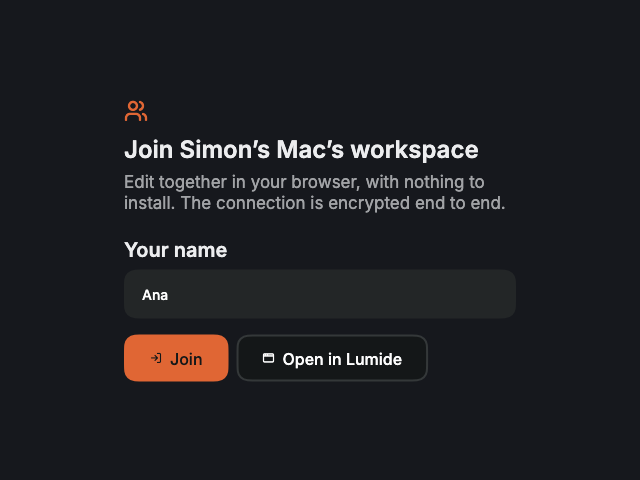
The invite link opens Lumide in the browser, with nothing to install. The tab is titled by the workspace and the host, such as
project · Simon's Mac — Lumide. Leaving, or Close Project, goes back to the start page. The guest types a name and clicks
Join, and compares the 6-digit code with you the first time, as any guest does. Open in Lumide
hands the invite to Lumide instead, for people who have it. The page is https://join.lumide.dev; to serve your own, set
Settings → Collaboration → Web App (collaboration.web_app_url). Cleared, Lumide sends
lumide:// links instead.
A browser guest works as any guest does, terminals included: the terminals you share open from their notice or Collaboration: Open Shared Terminal…, a trusted guest's own terminals run on your machine, and an editor's terminal says to ask you for the Trusted role.
The connection stays encrypted end to end, between your machine and the guest's, through the relay or your tunnel alike: they only pass it along and cannot read it. Collaboration: Sign Out of GitHub forgets your account on this device.
Work together#
- Carets: everyone's carets and selections show in their own colors, with their names. Someone whose connection dropped shows no caret until they are back.
- Follow: click someone's avatar in the title bar, or a guest's host name, or run Collaboration: Follow…. You see the file they look at, with your carets on all of theirs, and the editor area is outlined in their color. Others keep seeing your caret where you last put it yourself, so two people can follow each other. Following stops when you edit or open another file, when you click them again, or when you click Following in the status bar. When the person you follow is in a folder not shared with you, Lumide says so, and you follow them again once they are back in a shared one. Collaboration: Follow… shows where each person is by the folder's name, as your Files tree does.
Terminals#
Your terminals stay private until you share one.
- Share a terminal: right-click a terminal or its tab and choose Share Terminal, or, with a terminal active, run Collaboration: Share Terminal. These menu items show only while you share the workspace. Editors can watch it, and trusted guests can type in it. Its tab shows the sharing icon, a radio tower, while it is shared, whether or not the tab is active; in a background tab a spinner rings it while a program runs. Stop Sharing Terminal, from the same menus or the Command Palette, closing the terminal or stopping sharing ends it for guests, who see that it is no longer shared. The terminal and its programs keep running for you.
- Guests' terminals: a trusted guest's own terminals run on your machine. You see a notification when a guest opens one, with Watch to open it in a tab. You can type in it too, and end it from its tab. Collaboration: Watch a Guest's Terminal… lists them. Other guests cannot see them.
- What guests type: each line a guest types into a terminal on your machine, shared or their own, is listed with the time in Output → Shared Terminals. Lines recalled from shell history or edited with the arrow keys may show only in part.
As a guest, you are told when the host shares a terminal: click Open on the notice, or run Collaboration: Open Shared Terminal… later. Terminals shared before you joined are announced as you join. Editors watch it read-only; trusted guests can type, from the moment the host makes them trusted. A watched terminal draws at the host's size. Closing the tab stops watching, and the terminal runs on.
Agent Chat#
Your Agent Chats stay private until you share one. The agent always runs on your machine, with your agent, your sign-in and your approvals.
- Share a chat: click the sharing icon (a radio tower) in the chat's header, right-click its tab and choose Share Agent Chat, or run Collaboration: Share Agent Chat for the chat in focus. These show only while you share the workspace. Its tab shows the radio tower while it is shared. Stop Sharing Agent Chat, from the same places, closing the chat, switching it to another session or stopping sharing ends it for guests, who see that it is no longer shared.
- What guests see: every guest, whatever their role, watches the whole conversation so far and then live: messages, the agent's replies as they stream, tool calls and proposed changes. They also see which agent it is and its settings, such as its mode and model, below the chat. Only you change them; guests have no control for it.
-
Folders you don't share stay hidden: guests read anything the chat says about a file outside the folders you share, links followed, as "Hidden: a file in a folder that isn't shared". A tool call or permission request about such a file keeps only its title, with the path hidden: no contents, input, output or diff. So does a command or search that runs in such a folder, its own or else the agent's, or names such a file. Lines of other tool output that name such a file are hidden, and so is each such file of a diff, whole, and in messages, thoughts, plans and
@mentions the path itself is. Relative paths count from the agent's folder. When you change the folders you share, guests get the whole chat again, hidden for the new folders. Your own chat shows everything. What the agent writes about such a file without naming it still reaches guests. -
Sharing with folders you don't share: the first time you share a chat while some folders aren't shared, Lumide says what guests will see and what the agent can still do, and shares the chat only if you go on. The agent runs on your machine, as you, so when a trusted guest messages it, the message names that guest and the folders they see, without telling the agent the other folders left. Only the shared folders'
AGENTS.mdrules go with it. Until the agent answers the guest, Lumide refuses its requests to read or write files, start terminals, and its permission requests for edits and commands, outside the shared folders, and any command that names a path outside them. Everything else it asks to run or change waits for you: while the agent answers a guest, no Always Allow, policy or sandbox approves anything for it, and a terminal or file write it starts without asking first asks you too. In a mode where the agent acts without asking, such as Bypass Permissions, Accept Edits, YOLO or Full Access, Lumide never hears what it does, so trusted guests' messages and comments are refused until you switch to a mode that asks; the guest sees why, and you are told. What an agent does on its own without asking, such as reading a file with its built-in tools, and a command that reaches a file without naming it, are beyond Lumide's reach: share such a chat only with guests you trust with those folders. - What guests send: trusted guests type messages to the agent and send it agent comments: comments they leave on lines of code, as you do. Viewers' and editors' comments never reach the agent on their own, since a comment's text reaches it as a message does: they land among your own agent comments, on the code, with the guest's name, and Lumide tells you. Read them, change or remove what you like, then send them with yours. Lumide checks each guest's role on your machine before anything reaches the agent, and only takes comments on files in the folders you share. A trusted guest's message or comment for an agent that is not connected does not go: the guest sees why, and you are told.
-
Slash commands: a trusted guest's message may start with
/compact, or/skill <name>for one of the workspace's Agent Skills. Any other slash command, such as/model,/mode,/login,/logoutor one Lumide does not know, never reaches the agent: the guest sees "Guests can't run /… in a shared chat", and you are told. Agent comments always reach the agent as a message Lumide writes, so they never run a command. Your own messages are not limited. - Who wrote what: a trusted guest's message or comments show their name and picture above the message, in your chat and for every guest. A comment a guest left you shows their name before its lines, on the code and in the chat's list.
- Approvals stay yours: only you allow an edit or a command, or answer the agent's questions. Guests see that the agent waits for you.
As a guest, you are told when the host shares an Agent Chat: click Open on the notice, or run
Collaboration: Open Shared Agent Chat… later, to open it in a tab on the right. Chats shared before you joined are announced as you join. While it is open,
Send Agent Comments sends your comments to it instead of to an Agent Chat of your own, and the chat lists them above where you would type. Unless you are trusted, a comment on the code only saves, and
Save for Host in the chat's list, or Send Agent Comments, gives your comments to the host, who reads them and decides what reaches the agent. As a trusted guest you can also type messages there, and
@ mentions files of the folders shared with you; otherwise the chat says why you cannot. Agent comments in the conversation name their file by its folder's name, as your Files tree does. Below it are the host's agent settings, read only. If the host does not pass a message on, the chat says why above where you type, and keeps your text. Closing the tab stops watching.
What guests can reach#
Lumide checks every request a guest makes on your machine, whatever version of Lumide they run.
-
Only the shared folders. A guest can name only a folder you share or a file in it. Links are followed one step at a time, and a link that leads outside, or passes through a folder outside on the way, is refused. Guests see such a link in the Files tree, but not where it leads. Editors can delete or move it; they can't copy it, or move a link so that it leads outside.
-
Viewers and Editors can't change what your machine runs, applies or obeys on its own. They can read these files, but not write, create, delete, move or copy them, or a folder that holds them, in any letter case, with characters a Mac's disk ignores, or through a link:
.git, where Git keeps settings that can run programs. They can't read it either, as its config often holds a token in a remote's address;.sofluffyand.lumidefolders and.lumide-workspacefiles, which hold workspace settings (such as your terminal's shell and plugins' settings), launch configurations, snippets, agent rules and skills;- instructions and settings of coding agents, which your Agent Chat may follow:
AGENTS.md,AGENTS.override.md,CLAUDE.md,CLAUDE.local.md,GEMINI.md,QWEN.md,SKILL.md,.cursorrules,.goosehints,opencode.json,.mcp.json,.github/copilot-instructions.mdand.vscode/mcp.jsonfiles, and.agents,.claude,.gemini,.codex,.qwen,.cursor,.opencode,.factory,.skillsand.github/instructionsfolders.
Their editors of these files are read only. If one of these files is itself a link to another file, such as
AGENTS.mdpointing todocs/ai.md, editors can still change that other file. Searching runs Git so that a repository's settings run nothing. Viewers use the language servers you run already; they don't start new ones on your machine. -
Trusted guests have your access. Their terminals, tasks and language server commands run as you, on your machine, and can reach anything you can, inside the shared folders or not. Make someone Trusted only if you would let them use your computer.
-
Editors change what you may run later. An editor can change any other file in the shared folders, including build scripts and tool settings that you or your tools run afterwards,
.editorconfig, and.vscodesnippets and launch configurations, which Lumide uses only when you pick a snippet or import a configuration. A file an editor adds can also start a plugin you installed that waits for such a file. Review their changes before you run them, as you would a pull request. -
Language features tell guests about files in the shared folders only. A hover may still show a library's documentation from outside them, without naming its file.
-
Git status reaches guests for the shared folders only: each folder's branch and the status of the files inside it, never the rest of a repository the folder sits in, or where that repository lies. Guests' requests for a file's last committed version run Git on your machine, only for tracked files in a shared folder; your Git settings apply, as for your own editors.
Network and security#
- Guests on your network reach your machine directly. On macOS, Lumide asks for Local Network access the first time; allow it. If a firewall is on, allow incoming connections for Lumide.
- Guests anywhere reach it through the relay or your tunnel, which your machine connects out to: nothing needs opening on your router. Without the invite link's room id, 16 random bytes, no one gets to your machine through either.
-
Connections are encrypted with TLS. Each device has its own certificate, kept in
~/.sofluffy/lumide/collab/, a folder only you can open, which Lumide creates with the systemopensslthe first time. Withoutopenssl, Share says to install it. - Sharing from Windows is not available yet.
- You approve every new session, and you can remove anyone at any time.
- Collaboration: Forget Paired Device… forgets a device you paired with, as host or as guest. Its next join compares a code again. To end a session it already has, remove the guest in Manage Guests….
-
Don't need sharing? Turn off the built-in Sharing plugin in the Plugins pane's Installed
tab. Its title bar controls, commands and settings disappear, any session you are sharing stops, and
lumide://invite links no longer open Join a Session.