
On initial launch, Lumide presents a 5-step onboarding wizard to personalize your environment before opening the workspace.
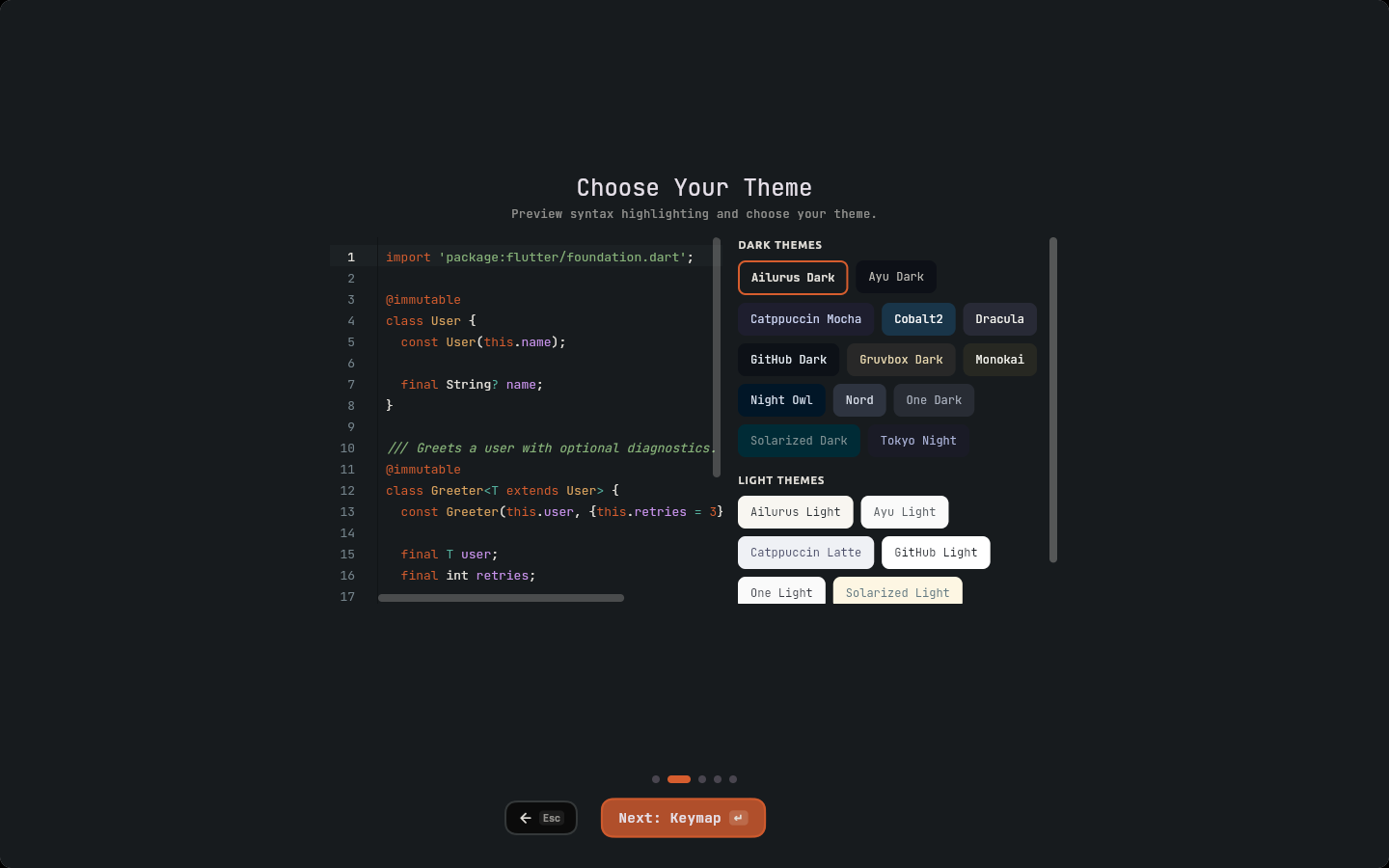
Onboarding Wizard Steps#
Navigate between steps using Enter (shown as ↵ on buttons) to advance, and
Escape (Esc) to go back.
1. Welcome#
Initial welcome to the editor environment. Press Enter or Space
to begin.
2. Theme Selection#
Preview and select an initial color palette:
- Live Preview: Cycles through dark and light themes (including Ailurus Dark, One Dark Pro, Tokyo Night, Catppuccin, and GitHub Light), applying them immediately.
-
Keyboard Navigation: Press
Down/Right/Jto cycle forward, orUp/Left/Kto cycle backward. - Can be changed anytime later via the Command Palette (Preferences: Change Color Theme).
3. Keymap & Vim Mode#
Configure keyboard shortcuts to match your muscle memory:
-
Presets: JetBrains (Default), VS Code, or Sublime Text. Cycle presets using
Down/JorUp/K. -
Vim Emulation Toggle: Press
VorSpaceto toggle full modal Vim editing directly from the setup step.
4. Dart SDK Configuration#
Configures Dart for plugin execution and AI features:
- Use installed Dart (
1): Detects Dart from system PATH, FVM, or Puro. -
Use Lumide managed Dart (
2): Let Lumide download and isolate Dart releases in~/.sofluffy/lumide/sdks/. Downloads can run in the background while you proceed. -
Refresh Detection: Press
Rto re-scan for installed SDKs.
5. All Set#
Completes setup and launches the workspace. Press Enter or Space
to get started. You can change these preferences at any time from settings or the command palette.
The Welcome Dashboard#
When no workspace folder is open, Lumide displays the Welcome Dashboard:
-
Start: A row of buttons under the title.
- New File (
Cmd+N/Ctrl+N): Open an untitled editor buffer. - Open Project: Browse your filesystem for a workspace folder.
- Clone Repository…, Connect to SSH Host… and Join a Session…. The last two hide when their built-in plugin is off.
- New File (
-
Recent Projects: Click a project, or press
Cmd + 1–5(macOS) /Ctrl + 1–5(Windows/Linux), to open it. ClickXon hover to remove it from the list. Type in Search recent projects beside the title to filter by name or path. A project with added folders shows +N folders and their names, and the filter matches them too. -
Configure:
- SDK Manager: Manage installed Dart and Flutter SDK versions.
- Plugins: Browse, install, and configure Lumide plugins.
- Settings (
Cmd+,/Ctrl+,): Open the graphical settings editor.
-
Resources:
- Quick links to Lumide Documentation and GitHub Issue Tracker.
Configuration Paths#
Configuration and state are saved locally on disk:
- User Settings:
~/.sofluffy/lumide/settings.json - Custom Keymap:
~/.sofluffy/lumide/keymap.json - SDK Storage:
~/.sofluffy/lumide/sdks/ - Workspace Overrides:
<project>/.sofluffy/lumide/settings.json
Workspace settings override user settings when that specific repository is open.
Next Steps#
- User Interface Tour — Window anatomy, dockable pane regions, top bar, and status bar.
- The Code Editor — Editor features, virtualized rendering, and multi-cursor editing.