
Lumide features a unified, flexible pane system. Any view—including text editors, terminals, the File Tree, Git (C.O.R.G.I.), search results, output logs, problems, and AI Agent chat—functions as a first-class tab that can be docked, split, and arranged across the workspace.
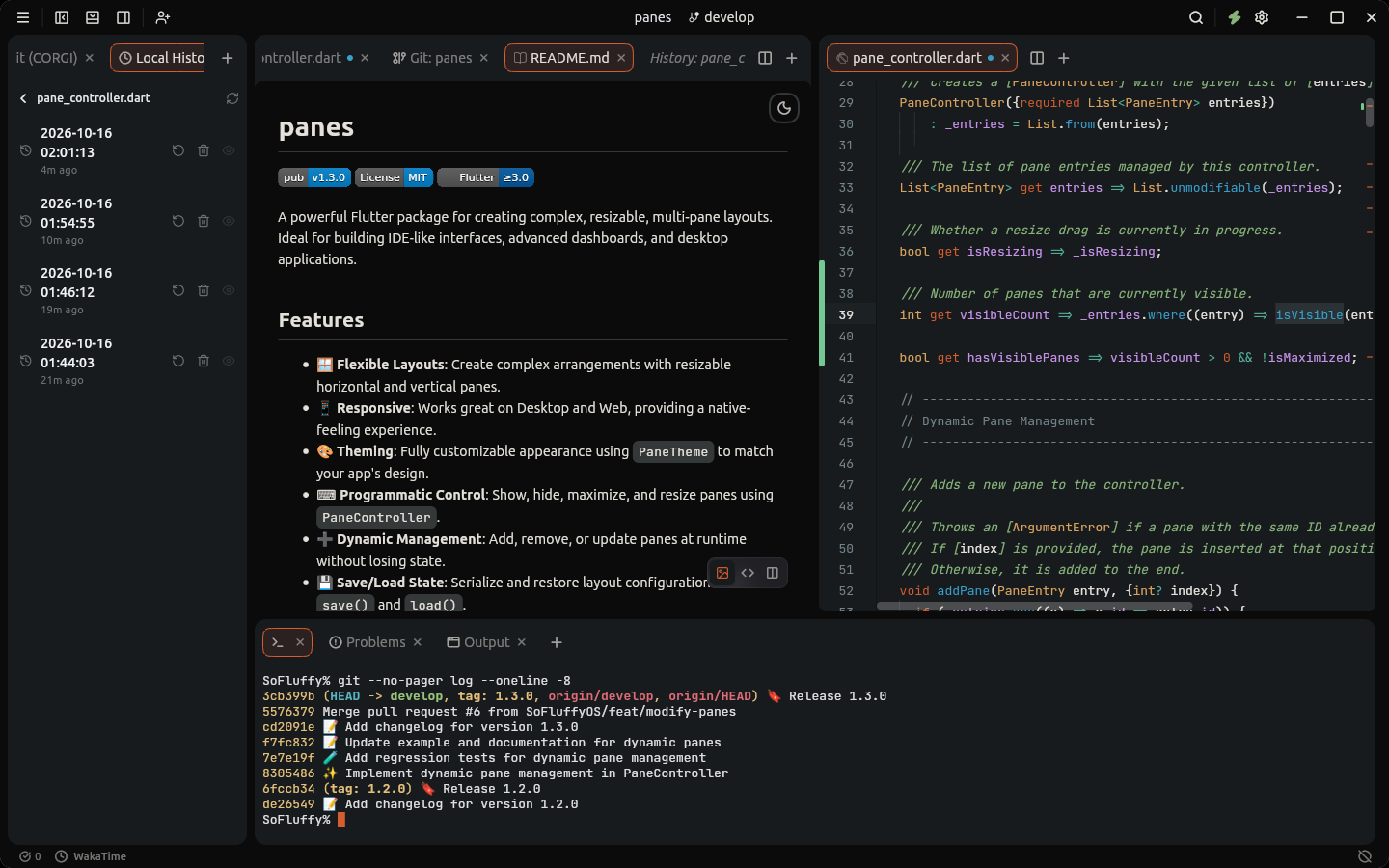
The 4 Dockable Workspace Regions#
Lumide divides the window into four dockable regions, each rendered via MultiViewFrame and managed by a recursive layout tree:
-
Center Region (
PaneRegion.center): Primary workspace for code editors, diff viewers, and side-by-side terminal or tool splits. -
Left Region (
PaneRegion.left): Typically hosts the File Tree, Project Search, and C.O.R.G.I. Git client. Toggled withCmd + 1(macOS) /Alt + 1(Windows/Linux) (orCmd + B/Ctrl + Bin VS Code preset). -
Right Region (
PaneRegion.right): Dedicated container for the native AI Agent Chat and secondary tool inspectors. Toggled withCmd + 3(macOS) /Alt + 3(Windows/Linux) orCmd + Shift + F12/Ctrl + Shift + F12. -
Bottom Region (
PaneRegion.bottom): Typically hosts the Integrated Terminal, Output, Problems, and Debug Console. Toggled withCmd + 2(macOS) /Alt + 2(Windows/Linux) orAlt + F12(orCmd + J/Ctrl + Jin VS Code preset).
Any tab type can be moved to or split inside any of these four regions. For example, you can drag a terminal into the center area next to code, or move C.O.R.G.I. into the right sidebar.
Splitting Panes#
Keyboard Shortcuts#
- Split Right:
Cmd + \(macOS) /Ctrl + \(Windows/Linux) -
Split Down:
Cmd + Shift + \(macOS) /Ctrl + Shift + \(Windows/Linux) -
Open to Side: Press
Cmd + Enter/Ctrl + Enterin Quick Open (Cmd + Shift + O/Ctrl + Shift + Ndefault, orCmd + P/Ctrl + Pin VS Code preset) to open a file into a new split pane immediately.
Edge Drop Zones (Interactive Drag & Drop)#
Drag any tab or file tree item toward the boundary of a pane:
- Left / Right Edge (40px zone): Highlights that half of the pane; dropping splits the pane vertically.
- Top / Bottom Edge (40px zone): Highlights that half of the pane; dropping splits the pane horizontally.
- Tab Bar Center: Drops the item into the existing tab group without creating a new split.
The Add Pane Menu (+)#
Every pane group tab bar includes an Add Pane (+) button. Clicking it displays a cascade menu to add any tool view directly into that pane group:
- Agent Chat: Open an AI Agent session.
- Diff: Open a file comparison or compare with clipboard.
- Files: Open an independent File Tree view.
- Git (C.O.R.G.I.): Open the visual commit graph and staging interface.
- Local History: Open point-in-time file revision snapshots.
- Output: Open build and language server output logs.
- Plugins: Browse and manage installed extensions.
- Problems: View real-time compiler diagnostics and linter warnings.
- Project Search: Open workspace full-text search.
- Terminal: Open a new terminal instance, with quick submenus for configured shell profiles (zsh, bash, PowerShell).
- Customize Tabs: Configure tab bar placement (Top, Bottom, Left, Right) and scroll orientation per group.
Pane Management & Resizing#
- Resize Dividers: Click and drag the divider handle between any two split panes to adjust their relative fractions.
- Automatic Collapse: Closing the last tab in a split group automatically collapses that split and expands adjacent panes to fill the reclaimed space.
- Multi-View Synchronization: Opening the same file in multiple splits creates synchronized views. Text edits and dirty state sync instantly across all views, while preserving independent scroll offsets and cursor positions.
- Layout Persistence: Your complete pane layout, active splits, and tab orders are automatically saved to disk and restored across app restarts and hot exits.
Next Steps#
- Tabs & Editor Groups — Pinning, context menus, and MRU tab navigation.
- Hot Exit & Session Recovery — Persistent buffers and crash recovery.