
Lumide supports third-party extensions running in isolated subprocesses.
Process-Isolated Architecture#
Plugins run out-of-process and communicate with Lumide over JSON-RPC 2.0:
- Zero Input Lag: Background computations and network calls in plugins cannot freeze the editor or degrade typing responsiveness.
- Fault Tolerance: A crashed plugin process terminates cleanly without crashing the IDE.
The Marketplace Panel#
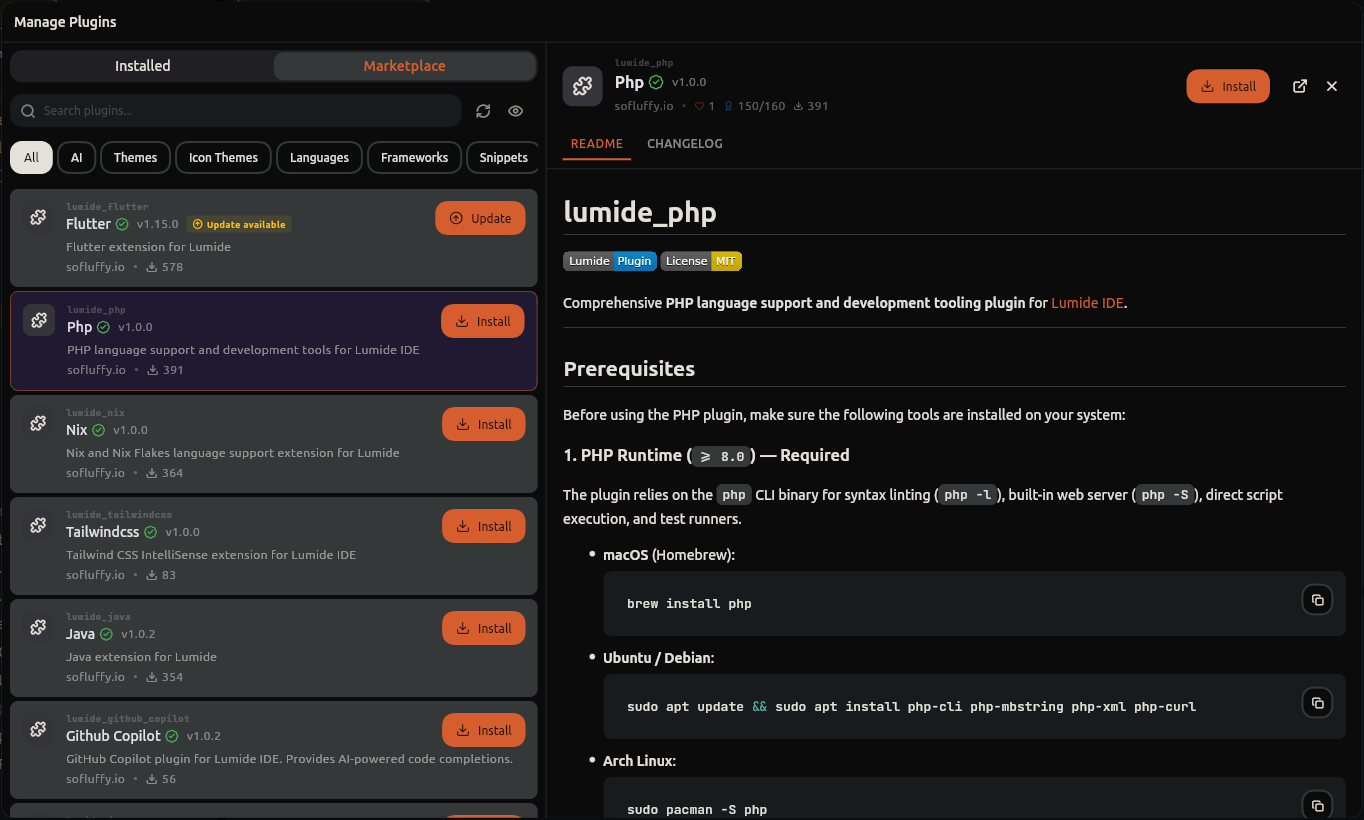
-
Shortcut:
Cmd + Shift + X(macOS) /Ctrl + Shift + X(Windows/Linux). -
Click the
+(Add Pane) button on any dock group header and select Plugins. - Or run Plugins: Open Marketplace from the Command Palette.
Browsing & Installing#
- Search: Filter extensions by keyword, author, or language tag.
- Inspect: Review README, version changelogs, and requested permissions.
- Install: Click Install to download and launch the extension.
Recommended Plugins#
Open a file that an official plugin supports, such as a .php file or Cargo.toml, and Lumide offers that plugin in a notification at the bottom right. Some plugins are offered by what a file holds rather than its name: Flutter for Dart code that imports Flutter or a
pubspec.yaml that depends on it, and Tailwind CSS for stylesheets using its directives, a
package.json listing it, or a page loading it from its CDN. The notification stays until you answer:
- Install: installs the plugin, as the marketplace does, starts it for the files already open and says when it's done.
- Don't ask again: never offers that plugin again.
- ×: not now; it isn't offered again until you restart Lumide.
Lumide doesn't offer a plugin you've already installed, even one you've disabled. Turn the offers off with
Plugin Recommendations (general.plugin_recommendations) in Settings → Plugins.
Managing Plugins#
Inside the Installed tab:
- Toggle: Temporarily enable or disable a plugin.
- Settings (⚙): Configure plugin-specific options.
- Uninstall: Remove the plugin package and delete its cached assets.
Security & Permissions#
When a plugin requests access outside its sandbox (e.g. arbitrary filesystem access, external network connections, or shell commands), Lumide displays a security prompt requiring explicit user authorization. Permissions can be reviewed and revoked at any time under Settings -> Plugins -> Permissions.
Built-In Plugins#
Some of Lumide's own features are built-in plugins. Turn any of them off in the Plugins pane's Installed tab to hide its commands, panes and settings.
-
Vim Mode (
vim): Edit with Vim's modes, motions, operators, registers and:commands. -
Git (
git): Branches, changes, diffs and blame in the editor, file tree and status bar, plus the C.O.R.G.I. Git client. -
Terminal (
terminal): Shells in the bottom pane, restored when you reopen the workspace. -
Project Search (
project_search): Find and replace text across every file in the workspace. -
Remote SSH (
remote_ssh): Open folders on other machines over SSH. Files, terminals, Git and language servers run there. -
Sharing (
collaboration): Edit together with people on your network, or anywhere through a relay. Share terminals and follow each other.
Next Steps#
-
Developing Plugins — Build Lumide plugins with the public
lumide_apiSDK. - Plugin SDK Reference — Detailed API reference for plugin capabilities.
- Return to the Documentation Overview.