
Click a conflicted file in C.O.R.G.I. to resolve it in the conflict editor. It is the file itself: every choice and every edit you make is saved as you go, and
Undo (Cmd + Z / Ctrl + Z) takes back both.
Merges, Rebases, Cherry-picks and Reverts#
When a merge, rebase, cherry-pick or revert stops on conflicts (including a pull or a stash), C.O.R.G.I. opens the first conflicted file and shows one slim banner above the graph, such as Rebasing feature onto main (3/7) · Stopped at abc1234 Fix login. It has one main button:
- Resolve N Conflicts while any remain: opens the next conflicted file.
- Continue Rebase (or Merge, Cherry-pick, Revert) once they are all resolved. A merge commits with git's prepared message; no editor opens.
When the last conflict is resolved, C.O.R.G.I. asks once whether to continue.
Skip (not for merges) leaves out the commit it stopped on, and Abort goes back to before the operation; both ask first. If a commit has nothing left to apply after resolving, Continue offers to skip it. The banner comes back after a restart, since it is read from the repository.
Conflicts in a Normal Editor Tab#
Open a conflicted file in an ordinary tab and it gets the same bars as the conflict editor: Use Current, Use Incoming, Use Both (and Use Base for diff3) above each conflict, tinted sides and marks on the scroll track, plus Resolve in C.O.R.G.I. to open the full conflict editor. They appear only while the file has conflict markers and disappear once it is resolved; progress, the three views and Mark Resolved stay in C.O.R.G.I.
The Conflict Editor#
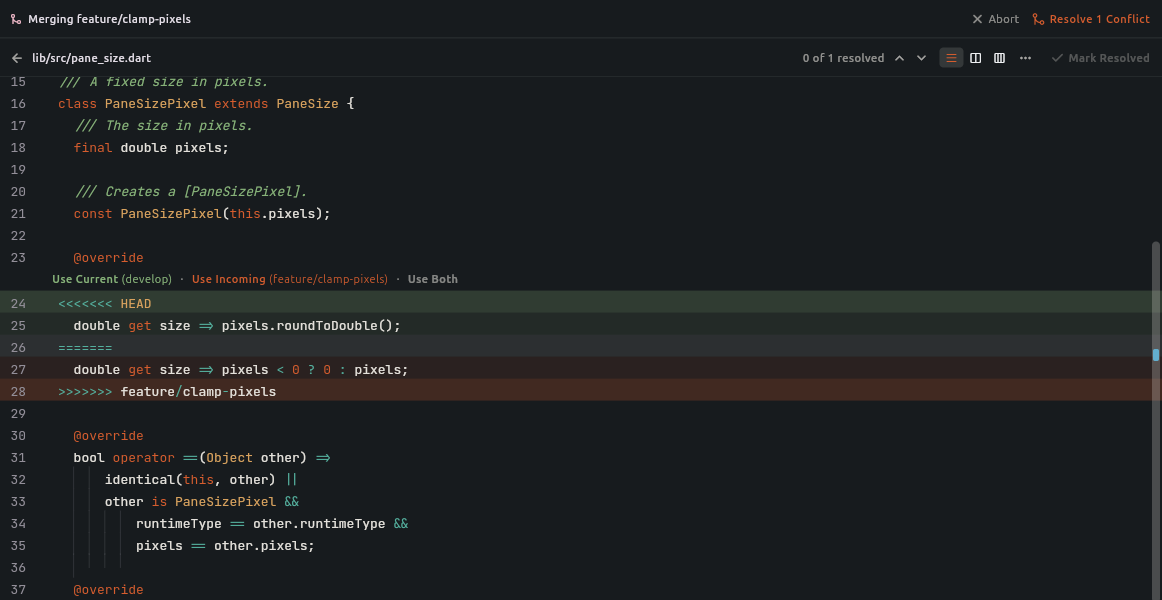
-
One bar per conflict: Above each conflict, choose Use Current, Use Incoming
or Use Both (current first). Each is named after its branch, such as Use Current (main)
and Use Incoming (feature/login). With
diff3conflicts, Use Base keeps the text both sides started from. -
Colours: The current side is tinted green, the incoming side blue, and the base (with
diff3) grey. -
Header: Shows the file, how many conflicts are resolved (
2 of 5 resolved), ‹ / › to step between conflicts, a ⋯ menu to use the current or incoming side for the whole file, and Mark Resolved. - Mark Resolved stages the file. It stays disabled while any conflict marker is left, so a file with markers is never staged by accident. You rarely need it: with Stage Resolved Conflicts on (Settings > Git, on by default), a file is staged when you leave it with no markers left, and so is any conflicted file you fix in another editor.
-
Staging from Changes works the same way: staging a conflicted file that still has markers asks first (
git addwould record it as resolved, markers and all), while Stage All, staging a folder and committing with nothing staged leave such files out and say how many.
Three views#
Switch views from the header (the choice is remembered):
- Linear (default): the file itself, markers and all, with a bar above each conflict. Best for editing by hand.
- Side by Side: Current and Incoming next to each other, read-only and lined up, each conflict tinted with its own links (Use Current, Use Both on the left; Use Incoming on the right).
- Three Panels: Current | Result | Incoming, like IntelliJ. The Result in the middle is the file you edit; pick a side from its pane on the left or right. The panes stay level and scroll together. In a narrow window the Result moves below the two sides, as in VS Code; to choose yourself, pick Columns or Result Below from the header's ⋯ menu (remembered).
In the side panes each conflict is also marked in the gutter (◆ on its first line), not only by colour.
Simple conflicts#
When both sides changed different parts of the same lines (say one renamed a variable and the other changed a value), a wand button appears in the header: Resolve N simple conflicts merges them word by word in one step. Overlapping changes are always left to you, and Undo takes the step back.
Resolving by hand#
The editor is writable, so you can also merge the two sides yourself:
- Every conflict has a mark on the scroll track; click one to jump there.
- Delete a conflict's markers and it counts as resolved straight away.
-
A marker left on its own (for example a
<<<<<<<whose>>>>>>>you deleted) is flagged in red as an unfinished conflict until you fix it.
Keyboard#
| Key | Action |
|---|---|
F7 / Shift + F7 | Next / previous conflict |
Alt + 1 | Use Current, then go to the next conflict |
Alt + 2 | Use Incoming, then go to the next conflict |
Alt + 3 | Use Both, then go to the next conflict |
Alt + 4 | Use Base (diff3), then go to the next conflict |
Cmd + Enter / Ctrl + Enter | Mark Resolved |
Change these in Settings > Keymap (search for C.O.R.G.I.).
Deleted, added or binary files#
Some conflicts have nothing to edit: one side deleted the file, only one side added it, or it is binary. Opening such a file says what happened and offers the choices that fit, such as Keep Current Version / Delete File, or Use Current Version / Use Incoming Version for a binary. Conflicted files are listed first in Changes; hover one to see what each side did.
From the changes list#
Right-click a conflicted file:
- Use Current for This File / Use Incoming for This File resolves every conflict in it at once, keeping what git merged cleanly.
- Use Current for All N Conflicted Files / Use Incoming for All N Conflicted Files does that for every conflicted file and stages them. Files deleted on the chosen side are deleted, and binaries take that side's version. It asks first.
Next Steps#
- Stashes & Branch Management — Temporary work and branches.
- Debugging Overview — DAP debugger.