
Lumide supports customizable color palettes, OS-synchronized light/dark switching, icon sets, and workspace wallpapers.
Changing Color Themes#
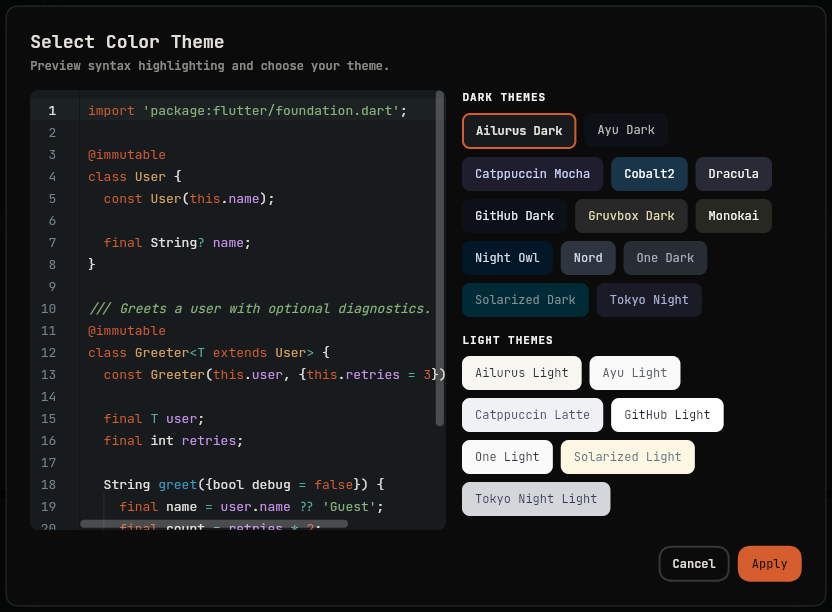
- Command Palette:
Preferences: Color Theme. - Settings: Navigate to Settings -> Theme.
- Use arrow keys to preview themes live. Press
Enterto apply.
Startup background and surface colors use the same RGB, RRGGBB or AARRGGBB hex validation as loaded themes, with optional
# and surrounding whitespace. If either color is invalid or the theme asset is unavailable, startup uses the default dark palette.
Auto Light/Dark Mode Switching#
To follow your system appearance:
- Open Settings -> Theme.
- Set
theme.dynamic_themetotrue. - Set
theme.dark(e.g."ailurus-dark"). - Set
theme.light(e.g."ailurus-light").
Lumide automatically switches themes when your operating system changes between dark and light mode.
File Icon Themes#
- Open Command Palette and run Preferences: File Icon Theme.
- Choose between configured icon packs.
Custom Workspace Wallpaper#
Set a custom image for empty editor canvases:
- Open Settings -> General.
-
Configure:
general.background_image: Path to an image file (.png,.jpg,.webp).general.background_opacity: Transparency from0.0to1.0.general.background_fit:cover,contain, orfill.general.background_flip_horizontal: Mirror image horizontally.
Next Steps#
- Keyboard Shortcuts & Keymaps — Shortcut editor and presets.
- SDK Manager — Toolchain version management.