
Lumide organizes its desktop workspace into five primary zones: the Top Bar, Left Panel, Center Editor Canvas, Right Agent Panel, and Bottom Panel, anchored by the Status Bar.
Workspace Layout#
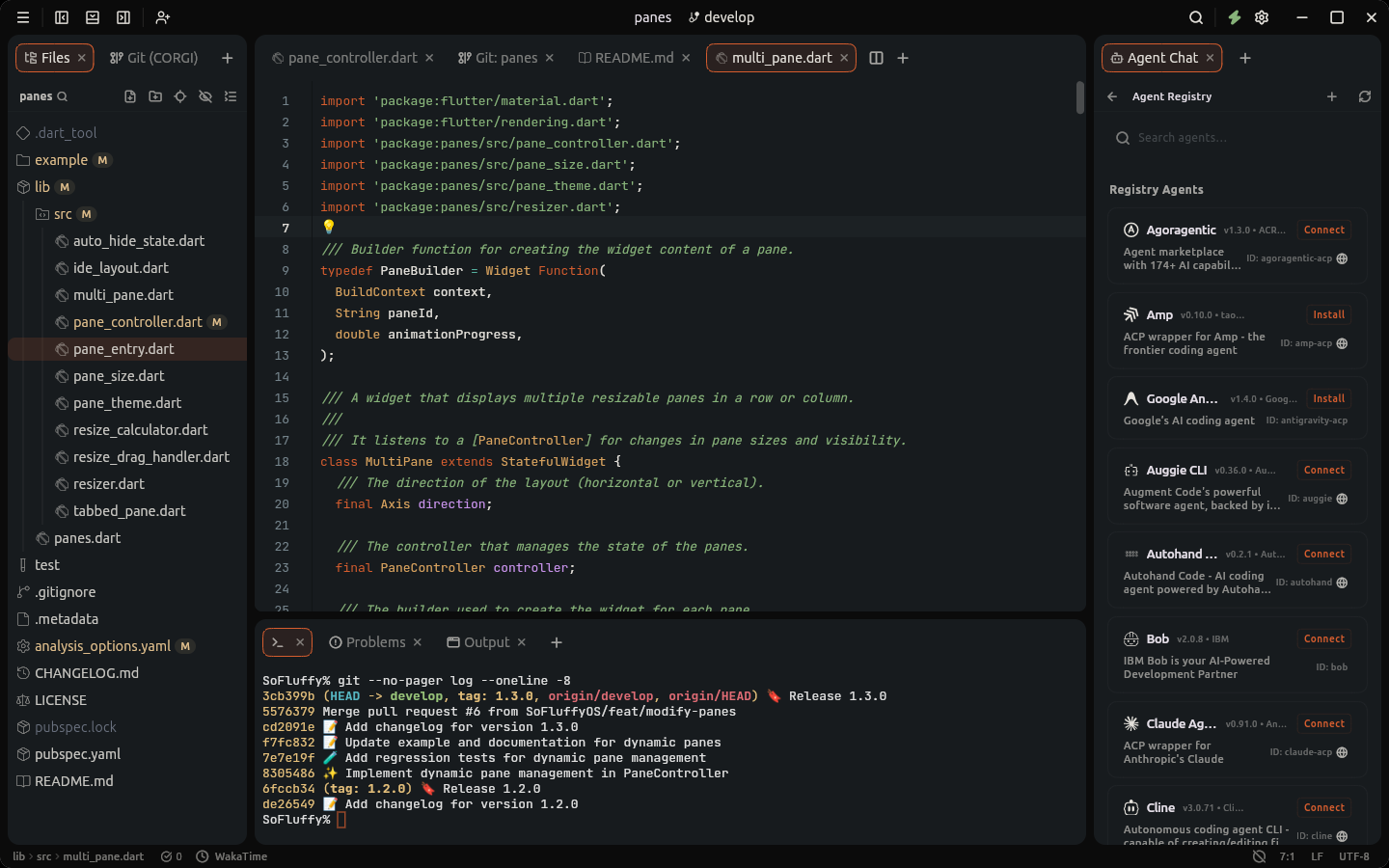
Core Sections#
1. Top Bar#
The Top Bar combines window chrome, session management, and primary IDE controls:
-
App Menu: Native macOS menu bar or integrated App Menu button on Windows and Linux. Tap
Altto open it from the keyboard. - Pane Toggle Buttons: One-click toggles for the Left Panel, Bottom Panel, and Right Panel.
- Session Identity Button: Displays the active workspace folder name or open file. Clicking it opens the Project Context Menu to quickly switch workspaces, reveal in Finder, Explorer or your file manager, copy project path, or close the workspace.
- Workspace Trust Badge: Displays a "Restricted Mode" shield badge when working in an untrusted directory, allowing you to review and manage folder permissions.
- Git Branch Indicator: Shows the active Git branch and sync status. Click to open the branch switcher.
- Launch & Debug Toolbar: Configuration selector dropdown with Run, Debug, and Stop execution controls.
- Language Server (LSP) Status: Real-time analysis status, compiler diagnostic counts, and background indexing spinner.
- Settings Gear: Quick shortcut to open the graphical Settings modal.
2. Left Panel (PaneRegion.left)#
A dockable multi-view container hosting primary navigation tools in tabbed views:
- Files (File Tree): Workspace directory hierarchy, file creation, deletion, and drag-and-drop file organization. Deleting moves files and folders to the trash. When the trash can't take them, such as on Linux mounts without a trash, Lumide asks before deleting them permanently.
-
Project Search (
Cmd+Shift+F/Ctrl+Shift+F): Full-text search and replace across the workspace with regex and glob filtering. -
C.O.R.G.I. Git Client: Visual branch graph, hunk-level staging, and commit composer (
Cmd+9/Alt+9in JetBrains;Cmd+Shift+G/Ctrl+Shift+Gin VS Code). - Local History: Snapshot timeline of point-in-time file revisions.
-
Toggle Visibility:
Cmd+1(macOS) /Alt+1(Windows/Linux) in JetBrains preset;Cmd+B/Ctrl+Bin VS Code preset.
3. Center Editor Canvas (PaneRegion.center)#
The primary text editing surface:
-
Tab Bar: Shows open files. A dot (
•) indicates unsaved changes. A lock icon (🔒) indicates read-only external dependencies or SDK sources. Duplicate filenames automatically show parent folder paths for disambiguation. -
Split Panes: Split editors to the right (
Cmd+\/Ctrl+\) or below (Cmd+Shift+\/Ctrl+Shift+\), or drag tabs to any pane edge. - Welcome Dashboard: Displayed when no files or project are open, offering recent projects and quick actions.
4. Right Agent Panel (PaneRegion.right)#
A dedicated dockable region hosting the native AI Agent Chat:
- Fully integrated with the Agent Client Protocol (ACP).
- Interact with autonomous agents (Claude, Gemini, Goose, Cline), stream inline diffs, drag editor tabs directly into chat as context, and approve terminal commands.
-
Toggle Visibility:
Cmd+3(macOS) /Alt+3(Windows/Linux) in JetBrains preset;Cmd+Option+B/Ctrl+Alt+Bin VS Code preset.
5. Bottom Panel (PaneRegion.bottom)#
A tabbed utility panel:
- Integrated Terminal (`Ctrl+``): Hardware-accelerated shell sessions with multi-tab and side-by-side splitting.
- Output: Logs from language servers, background tasks, and compilers.
- Problems: Interactive list of compiler diagnostics, linter warnings, and quick fixes.
- Debug Console: Interactive REPL prompt and stack frames during active debug sessions.
-
Toggle Visibility:
Cmd+2orAlt+F12(macOS) /Alt+2orAlt+F12(Windows/Linux) in JetBrains preset;Cmd+J/Ctrl+Jin VS Code preset. - Layout: By default it sits between the side panels. Choose Full Width to run it across the whole window, or Under Left Panel / Under Right Panel to extend it under one side. Set it in Settings → Appearance → Layout, or run Bottom Panel Layout… from the Command Palette. Panel sizes and open tabs stay as they are.
6. Status Bar#
Located at the bottom edge:
- Active File Breadcrumbs: Shows the path hierarchy of the currently focused document.
- Issue Count: Real-time count of project errors (🔴) and warnings (🟡). Click to reveal Problems in the Bottom Panel.
- AI Completion Status: Active model indicator and ghost-text toggle.
-
Cursor Coordinates: Line and column (
Ln X, Col Y) of the active cursor. -
Formatting Indicators: Line endings (
LF/CRLF) and file encoding (UTF-8). -
Vim Mode Chip: Displays active modal state (
NORMAL,INSERT,VISUAL,REPLACE). - Download & Update Indicators: Shows progress for active SDK downloads and application updates.
Primary Shortcuts#
Shortcuts below reflect Lumide's default JetBrains keymap preset, along with equivalents in the VS Code preset.
| Action | JetBrains (macOS) | JetBrains (Win/Linux) | VS Code Preset |
|---|---|---|---|
| Quick Open | Cmd + Shift + O |
Ctrl + Shift + N |
Cmd + P / Ctrl + P |
| Command Palette | Cmd + Shift + P |
Ctrl + Shift + P |
Cmd + Shift + P / Ctrl + Shift + P |
| Search Everywhere | Shift + Shift |
Shift + Shift |
— |
| Toggle Left Panel | Cmd + 1 |
Alt + 1 |
Cmd + B / Ctrl + B |
| Toggle Bottom Panel | Cmd + 2 / Alt + F12 |
Alt + 2 / Alt + F12 |
Cmd + J / Ctrl + J |
| Toggle Right Panel | Cmd + 3 |
Alt + 3 |
Cmd + Option + B / Ctrl + Alt + B |
| Toggle Terminal | `Ctrl + `` | `Ctrl + `` | `Ctrl + `` |
| Project Search | Cmd + Shift + F |
Ctrl + Shift + F |
Cmd + Shift + F / Ctrl + Shift + F |
| Git (C.O.R.G.I.) | Cmd + 9 |
Alt + 9 |
Cmd + Shift + G / Ctrl + Shift + G |
| Go to Line | Cmd + L |
Ctrl + G |
Ctrl + G |
| Open Settings | Cmd + , |
Ctrl + , |
Cmd + , / Ctrl + , |
Next Steps#
- The Code Editor — Text engine, virtualized rendering, wrapping, and cursor modes.
- First-Run Setup — Onboarding wizard, keymaps, and initial preferences.