
Lumide provides unified keyboard navigation for files, commands, lines, and symbols.
Quick Open#
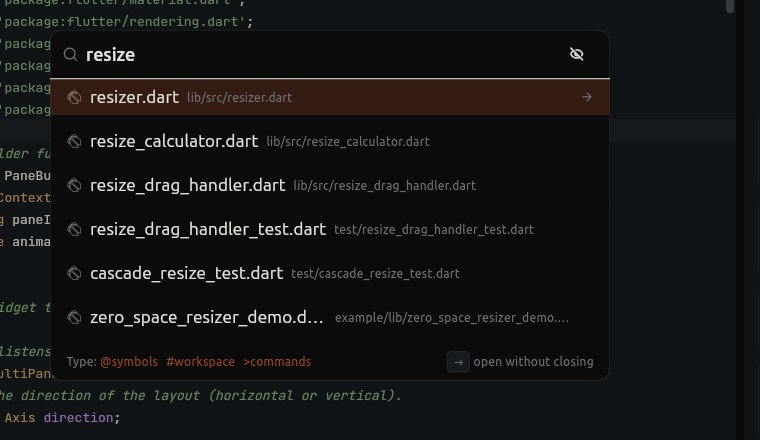
Press Cmd + Shift + O (macOS) / Ctrl + Shift + N
(Windows / Linux) in the default JetBrains keymap (or Cmd + P / Ctrl + P
in the VS Code preset) to open the unified file finder:
-
Type file or path fragments (e.g.
authservmatcheslib/services/auth_service.dart). - Fuzzy matching scores prefix matches, path boundaries, and recently accessed files.
- Press
Enterto open in the current editor. -
Press
Cmd + Enter/Ctrl + Enterto open in a new split pane.
Command Palette#
Press Cmd + Shift + P (macOS) / Ctrl + Shift + P
(Windows / Linux) (or type > in Quick Open):
- Search and run any IDE command, setting toggle, or action.
- Shows assigned keyboard shortcuts alongside commands.
Go to Line (Cmd + L / Ctrl + G)#
Jump directly to a line number:
-
Press
Cmd + L(macOS) orCtrl + G(Windows/Linux). - Enter the target line number (e.g.,
85). - Optional column suffix:
85:14. -
Press
Enterto commit orEscapeto cancel.
Symbol Navigation#
Document Symbols (@)#
-
Press
Cmd + F12(macOS) /Ctrl + F12(Windows / Linux) in JetBrains preset (orCmd + Shift + Oin VS Code preset, or type@in Quick Open). - Lists all classes, methods, functions, and fields in the current active file.
Workspace Symbols (#)#
-
Press
Cmd + Option + O(macOS) /Ctrl + Alt + Shift + N(Windows / Linux) in JetBrains preset (orCmd + T/Ctrl + Tin VS Code preset, or type#in Quick Open). - Searches symbols across the entire project via the Language Server.
Query Prefix Summary#
| Prefix | Mode | Example |
|---|---|---|
| (None) | Fuzzy file search | main.dart |
> | Command Palette | >Toggle Soft Wrap |
@ | Document symbols | @build |
# | Workspace symbols | #UserProfile |
Next Steps#
- Project-Wide Search — Multi-file search and replace.
- Navigation History — Cursor jump breadcrumbs.