
Project search scans all files across the open workspace.
Opening Search#
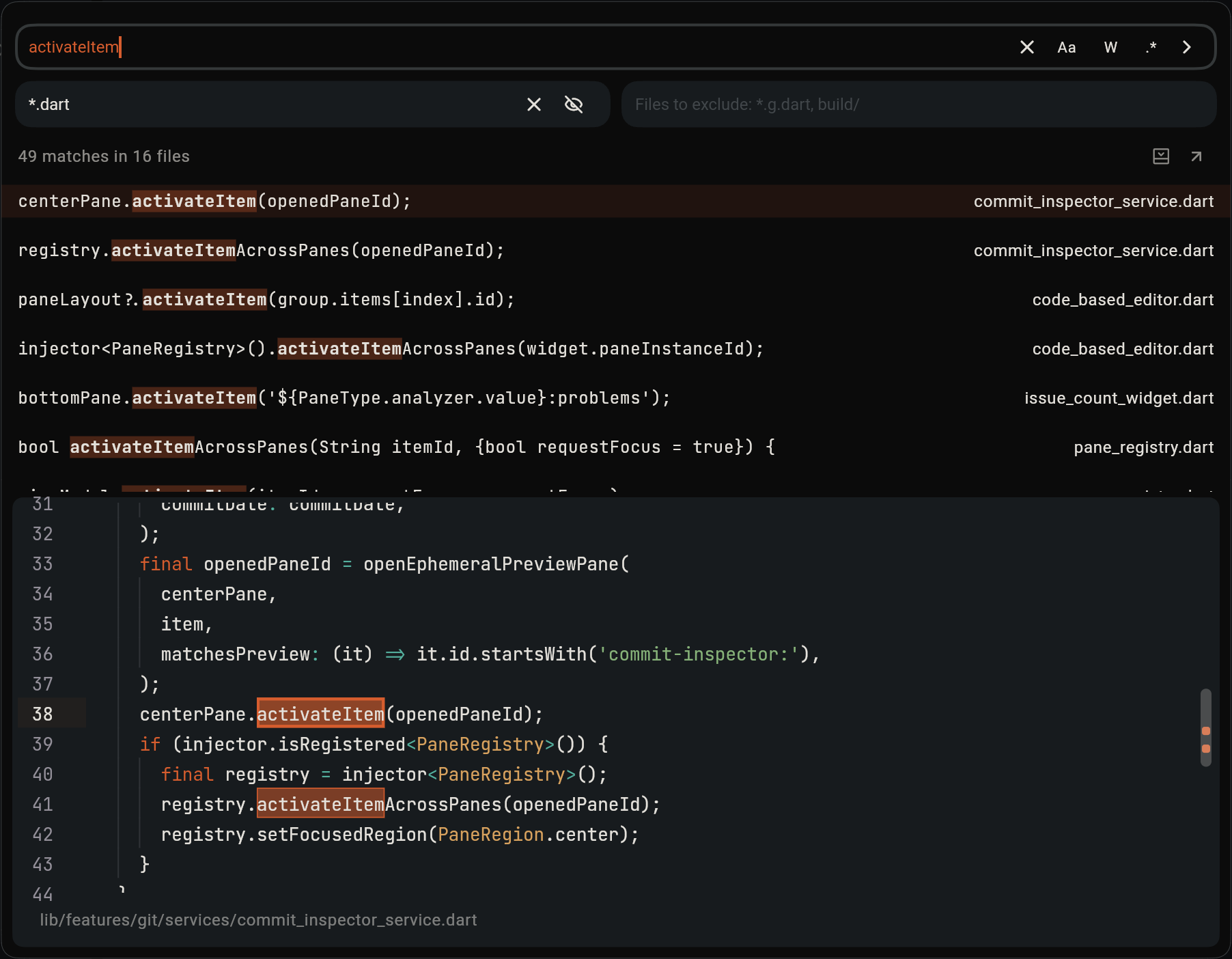
-
Search:
Cmd + Shift + F(macOS) /Ctrl + Shift + F(Windows / Linux). -
Toggle Replace:
Cmd + Shift + R(macOS) /Ctrl + Shift + R(Windows / Linux) in JetBrains preset (orCmd + Shift + H/Ctrl + Shift + Hin VS Code preset). -
Click the
+(Add Pane) button on any dock group header and select Search.
Options & Filters#
- Match Case (
Aa): Exact casing. - Match Whole Word (
W): Boundary matches only. - Regular Expression (
.*): Regular expression patterns. -
Files to Include: Search only files that match these globs, separated by commas (e.g.
*.dart, ./lib/**). Put!before a glob to leave its files out. -
Files to Exclude: Leave out files that match these globs (e.g.
*.g.dart, build/). - Folders: With several workspace folders, pick which ones to search. See Searching Some Folders.
-
.gitignorepatterns are respected automatically. The eye button in Files to Include searches Git-ignored files too. -
Some folders are always skipped, also with the eye button on, here and on a remote host: version control and editor metadata (
.git,.idea,.vscode, …), dependency caches (node_modules,.dart_tool,.fvm) and build output (build,target,obj). Abinfolder is searched, as Dart and Go keep sources there; where it holds build output,.gitignoreusually leaves it out.
File Patterns#
A glob matches a file's path inside its workspace folder, such as lib/src/app.dart, never the folders above the workspace folder. It matches a file, or a folder and every file in it. A glob that doesn't start with
./ or **/ matches at any depth, as if it began with **/.
| Pattern | Matches |
|---|---|
lib |
Every file in any folder named lib, and files named lib |
*.dart | Files ending in .dart, at any depth |
lib/*.dart |
.dart files directly inside any lib folder |
build/ |
Files inside any folder named build; a trailing / matches only folders |
./lib/** |
Files under the lib folder at the top of each workspace folder |
src/**/test |
Any test under any src, at any depth in between, including none |
** | Any number of folders |
* | Any characters except / |
? | One character except / |
*.{dart,yaml} | Either alternative; alternatives can nest |
file[0-9].txt, [!._]* |
One character from a set or range; ! or ^ negates it |
./api/** |
With several workspace folders, everything in the folder labelled api |
./app (server)/lib/** |
Folder labels are written as the Files tree shows them |
/lib/** |
lib
at the top of every workspace folder, even when a workspace folder is labelled
lib
|
-
With several workspace folders,
./<label>/always names the workspace folder with that label: with a folder labelled lib,./lib/**is that folder, not thelibfolders inside the others; write/lib/**for those. A hint under the patterns says so when a glob names a folder by its label. - Commas separate globs, except inside
{}and[]. - A glob starting with
/, or with the path of a workspace folder, starts at that folder. - Letter case matters on Linux and not on macOS or Windows, as for their file systems.
-
Excludes win over includes. Folders a glob excludes are not searched at all, which makes excluding large folders fast, also on a
Remote SSH host, which skips them itself. A host running an older Lumide server skips only plain names, such as
node_modulesorbuild/, and the other excludes leave out its matches afterwards.
Searching Some Folders#
- Find in Folder: right-click a folder in the Files tree and choose Find in Files…, or press the search shortcut with a folder selected in the tree, to search only that folder. Folders with the same name are never mixed up.
- Folder picker: with several workspace folders, or after Find in Folder, the button under the file patterns names the folders searched. Pick All Folders, or one folder; pick more folders to add them, and pick a picked one again to drop it.
- The workspace remembers the folders for its next search until you pick others, also after you reopen it. The picker follows the workspace: folders that join, come back or leave show at once, and a folder that leaves drops out of the folders searched.
-
To scope a single glob to one folder instead, start it with
./and the folder's label:./api/**/*.dart. A label glob for a folder outside the picked folders matches nothing.
Reviewing & Replacing Results#
- Hits are grouped by file with occurrence counts.
- Click any hit to jump to that file, line, and column.
-
Replace:
- Click the replace icon on an individual hit to replace one occurrence.
- Click the replace icon on a file header to replace all hits in that file.
- Click Replace All to replace every match across the project.
- When regex mode is active, use
$1,$2capture variables in the replacement field.
Next Steps#
- Navigation History — Jump back and forward.
- Split Panes — Organize editor panes.