
Lumide includes an interactive Diff Viewer for code review and revision comparison.
Opening Diff Views#
- From Source Control: Click any modified file in C.O.R.G.I.
- Compare with HEAD: Right-click any file and select Compare with Previous Revision.
- Compare Two Files: Select two files in the File Tree, right-click, and select Compare Selected Files.
- Compare with Clipboard: Run File: Compare Active File with Clipboard from the Command Palette.
Viewing Modes#
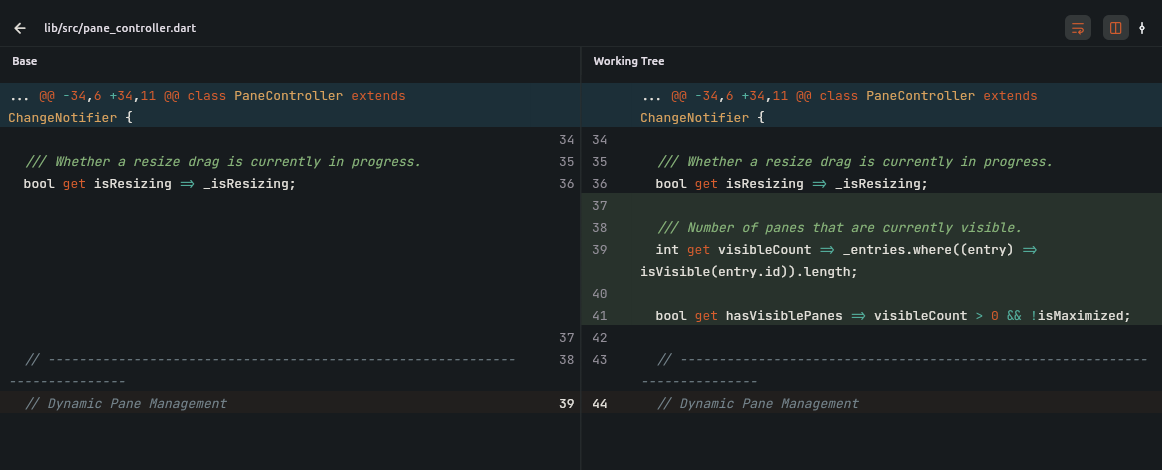
Toggle between modes using the layout icon in the diff tab bar:
1. Side-by-Side Split Diff#
- Original/old file on the left; modified/new file on the right.
- Synchronized Scrolling: Both panes align line-for-line with spacer padding on added/removed blocks.
2. Unified Inline Diff#
- Single column view with added (
+green) and deleted (-red) lines. - Optimized for compact laptop viewports.
Intra-Line Highlights & In-Diff Editing#
- Intra-Line Highlighting: Specific characters and words changed within a modified line receive high-contrast highlights.
-
Direct Editing: Both panes are live editors. Fix code directly inside the diff view, then press
Cmd + S(Ctrl + S) to save. -
Gutter Actions: Use the gutter transfer buttons (
>>and<<) to copy change blocks between the original and modified buffers.
Next Steps#
- Merge Conflict Resolution — Single-pane conflict editor.
- Stashes & Branch Management — Shelving work.