
Lumide shows an HTML page as a live preview next to the editor, and any page, such as your dev server on
localhost:3000, in a browser pane. Both are the same browser: drawn by Lumide's own engine, with no WebView, so it opens at once and stays light on memory.
Display Modes#
HTML files (.html, .htm) open as code. Like the Markdown preview, the buttons in the editor's header switch modes:
- Edit Source: the code alone.
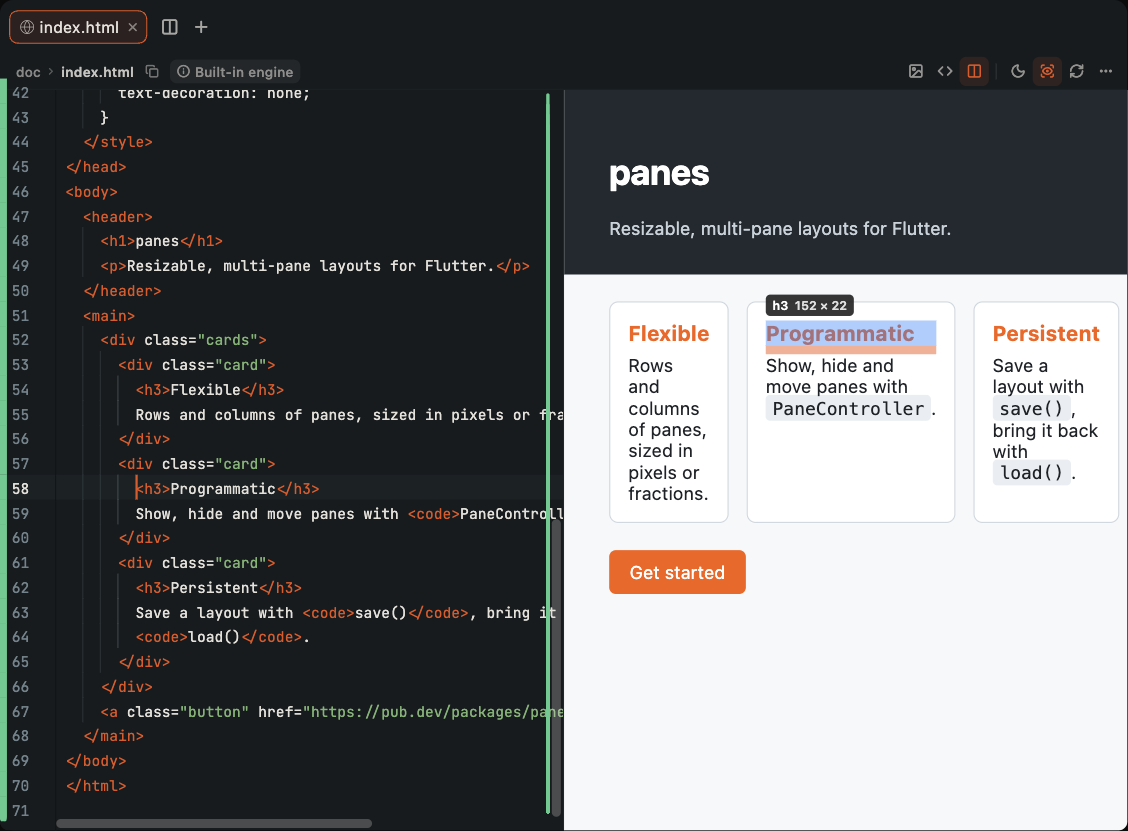
- Split View: the code beside the live page.
- Preview: the page alone.
Each open file keeps its own mode. Open HTML Preview in the command palette switches the active file to Split View.
To keep the page in a pane of its own, run Open HTML Preview in Pane, or choose HTML Preview from the add-pane menu. The preview opens as a tab in the right pane.
The Browser Bar#
With the built-in browser on, every page has an address bar, with Back, Forward and Reload:
- Click a link in a previewed file and the page goes there in place, web pages included. Back returns to your file.
-
Type an address and press Enter, with the built-in browser on: a file path (relative to the page's folder or your workspace), a URL,
localhost:3000, or just:5173for a port on this machine. Escape puts the address back. - Open in Browser shows the page in your default browser.
A pane of its own shows the full bar: the address, the engine mark ⓘ, the light and dark switch, the cursor highlight, Open in Browser and ⋯. In Split View and Preview, the page gets a compact bar with Back, Forward and the address; the editor's header keeps the rest.
Browser Panes#
Experimental, and off by default. Lumide draws pages on the same thread as the rest of the IDE, so loading a heavy page can freeze Lumide for a while. Turn it on in Settings → Editor → HTML Preview → Built-in Browser (Experimental), or in
settings.json:"html_preview": { "built_in_browser": true }Off, the HTML preview shows your HTML files as before, with no browser bar: a link to another file loads in place, and the page never goes to a web address, by a link or by its scripts. Right-click a web link for Open Link in Browser. Agents don't get the browser tools either.
With the built-in browser on, choose Browser from the add-pane menu, or run Open Browser, to open a page at any address: a tab in the right pane, or a frame on a board. Type
localhost:5173 and your Vite app shows up beside your code, hot reload included.
The tab is named after the page, and the pane comes back with the layout at the address you left it at. A link that opens a new tab opens a new browser pane.
Each page keeps its own cookies and storage in memory, apart from other pages and from Lumide's own settings.
The Editor Header#
While the page shows, the editor's header holds its controls after the mode buttons, as it holds the Markdown preview's: the light and dark switch, the engine mark ⓘ, the cursor highlight (shown while the code is beside the page), Reload Preview and ⋯. The ⋯ menu holds the page width, the inspector, Show Console and Open in Browser. Hover the mark for the page's title. Nothing floats over the page. In a narrow editor, reload and then the highlight button move into the ⋯ menu.
A preview opened in a pane of its own has a header of its own instead, as the pane has no editor header: the page's title, the engine mark ⓘ, the light and dark switch, the cursor highlight, Reload Preview and ⋯. With the built-in browser on, that header is the full browser bar.
Built-in Engine and Browsers#
The page is drawn by Lumide's built-in engine, not a browser, and can differ from one; the ⓘ mark in the header says so on hover. Open in Browser opens the page in your default browser for an exact view. A page with unsaved edits opens as a temporary copy that still loads its style sheets, scripts and images from beside the file.
When the page hits an error, such as a call to a web API the engine does not have, the mark turns into a count of them; click it to open the page's console. The count starts over each time the page reloads. A strip under the bar says so too, with Open in Browser right there. A page that can't load, such as a dev server that isn't running, says why in the same strip.
What works today:
| Page | Works |
|---|---|
| Static sites with links, style sheets and images | ✅ |
Plain JavaScript: DOM events, forms, fetch, timers | ✅ |
| Vite dev servers, vanilla and React, with hot reload | ✅ |
| Big single-page apps | It depends: try it, and use Open in Browser when the strip shows errors |
Pages get WebSocket, EventSource, IndexedDB, the Cache API, workers, navigator.clipboard, fullscreen and compression streams.
Light and Dark#
The page follows Lumide's theme. Click the sun or moon in the header to see it in the other one, as in the Markdown preview; once Lumide switches to that theme itself, the page follows the theme again.
In dark, a page draws as a browser in dark mode draws it: prefers-color-scheme: dark matches, so a page with dark styles uses them, and a page without colours of its own gets light text, links and form controls on Lumide's dark background. Colours a page sets itself stay as they are.
Live Updates#
- As you type: edits to the page reload the preview after a short pause, and the scroll position stays where it was. Unsaved text counts.
-
Style sheets and scripts: changes to a linked
.cssor.jsfile reload the page too, whether the file is open or saved from elsewhere. -
Cursor to page: the element under the editor cursor is outlined in the preview. Turn it off or on with the highlight button in the header (shown while the code is beside the page), or the
html_preview.highlight_cursor_elementsetting.
Inspector#
Turn on Inspect Element in the header's ⋯ menu, then click an element to jump to its tag in the source. Ctrl or Cmd plus click does the same without turning the inspector on.
Page Width#
The header's ⋯ menu picks Fit, Phone, Tablet or Laptop, to check how the page lays out at each size.
Console and Dialogs#
console.* output and script errors go to the HTML Preview channel in the Output panel.
alert, confirm and prompt show a notification; confirm
answers OK and prompt answers with its default value.
Next Steps#
- Lumide's Tools for Agents — Agents open, test and show pages in this browser.
- Markdown Live Preview — Preview Markdown files.
- The Code Editor — Editor features and shortcuts.